 Audiogravity
9. Troubleshooting
Most issues come down to a service that isn't running, an output that points at the wrong device, or a network hop that's flaky. Audiogravity surfaces all three in the interface.
Before you write in, open System › Actions › Support Report. It gathers the state of the whole box in one gesture — versions, services, outputs, configuration files, library — with passwords and tokens removed, and gives you a Copy button. Paste it into your message. See 7. Administration.
No sound / wrong output
Read the message first. Audiogravity tells you why a track will not play, as a notification and under the output in the fullscreen player. Start there — the answer is usually on screen:
- "Output in use by another player" — your sound card is exclusive (that is what makes bit-perfect playback possible), so only one player can hold it at a time. Stop the other one — often HQPlayer: turn its Use as output switch off and the card is released (see 6. Outputs & engines).
- "its network audio daemon (NAA) is not running" — HQPlayer is your output but the piece that feeds your DAC is stopped. Start it in Services, or turn the switch off to play locally.
- "which HQPlayer cannot decode" — the track is in one of the few formats Audiogravity does not convert for HQPlayer: a DST-compressed DFF, Speex or AMR; the message names it. (The full list is in 6. Outputs & engines.) Turn the switch off to play it on the local output. A whole album is refused if any of its tracks is in such a format — the message names that track — so you get one clear answer instead of music stopping partway through.
- "HQPlayer could not open this track" (or "could not open 2 of 12 tracks") — HQPlayer accepted the track, then dropped it without an error of its own: a file it cannot reach on your network, or cannot decode. The message names the tracks. If HQPlayer kept part of an album, the rest plays; if it kept nothing, nothing is sent to play. Turn Use as output off to play them on the local output.
- "this box runs NAA 6, which does not work with HQPlayer 5.x" — the adapter on your box and the HQPlayer it feeds are on different major lines, and that pair carries no audio. Open Audio Software and install the NAA line the message names: the version offered there follows your HQPlayer. Or turn Use as output off to play on the local DAC.
- "Both HQPlayer and a network renderer are selected" — pick one.
- "The speaker you selected is not answering" — the renderer is asleep, off the network, or still reconnecting. Wake it up, or pick another output. Audiogravity refuses rather than playing out of the local DAC behind your back.
- "says it is playing but its position is not moving" — HQPlayer accepted the track and reports playing, but nothing is coming out: the sound card is held elsewhere. Same fix as the first entry.
- "accepted the track but never started playing it" — either the sound card is busy, or HQPlayer cannot decode that format.
A message can arrive a few seconds after you press play. Whether sound really came out of HQPlayer cannot be known instantly — a heavy chain takes time to start. Playback begins immediately and the check runs behind it, so a problem shows up under the output shortly after, not at the moment of the tap. It clears on its own as soon as the music plays.
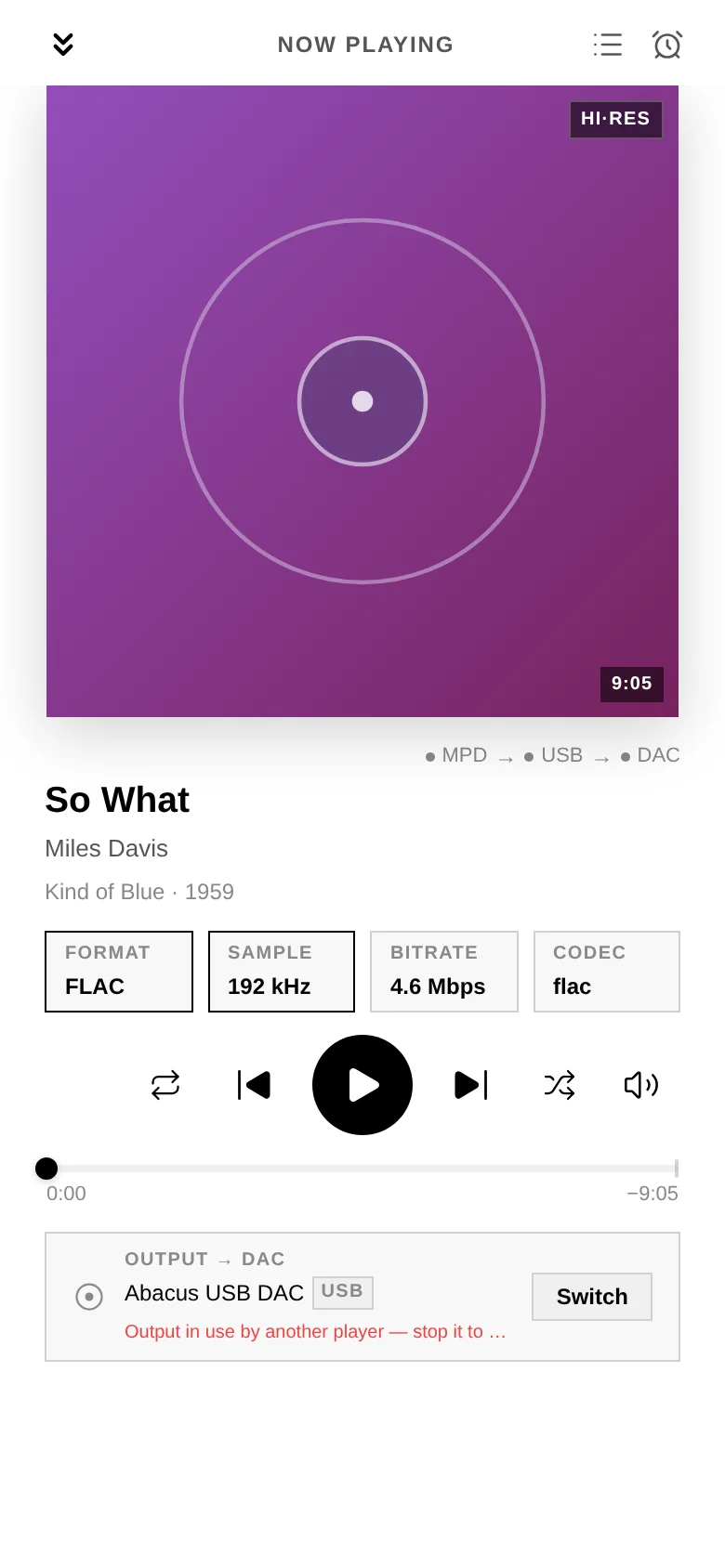
If nothing is displayed:
- Check the output selector — is the right destination (Local DAC vs a network renderer) selected?
- In Services, confirm the relevant service (mpd, shairport-sync…) is RUNNING.
- Then open the support report rather than hunting. Its Audio stack section prints, for each service, the output Audiogravity pinned it to next to the one that service's own configuration names, and marks the line when the two disagree. A flagged line means the card index has drifted, usually after a hardware change: re-run Guided → output and the pin is rewritten (the DAC index is normally pinned automatically — see 3. First run).
My DAC is not in the output list (Raspberry Pi HAT)
A HAT — a DAC board stacked on the Pi's GPIO header (HiFiBerry, IQaudIO, Allo,
Pi-DAC…) — is not plug-and-play the way a USB DAC is. Linux creates a sound card for it
only once /boot/firmware/config.txt names its device-tree overlay. Until then the
board is invisible to the entire system, and no setting in Audiogravity can reveal
it: the output list mirrors the sound cards Linux exposes, nothing more. This is a
one-time manual step, and it is the same on every Pi-based music player.
Why is it not automatic? The HAT standard lets a board carry a small memory chip describing itself, which the Pi's firmware reads at boot and acts on with no configuration at all. Many audio HATs ship that chip blank, so there is nothing to read — and the board's own chips sit on a bus that stays powered off until an overlay declares it. Nothing can be probed before the declaration exists.
1. Confirm the board really is missing. Over SSH, or in the browser Terminal (System tab, admin):
cat /proc/asound/cards
If your DAC is not in that list, this section applies. If it is listed, the problem lies elsewhere — go back to No sound / wrong output.
2. Find the overlay name for your board. Every Raspberry Pi OS image ships the full catalogue — around forty audio boards — and your kernel version, because some vendors changed their overlay names at kernel 6.1.77:
grep -iE "^Name:.*(hifiberry|iqaudio|allo|dac|digi|audio)" /boot/firmware/overlays/README
uname -r
Cross-check the name against your manufacturer's own documentation. HiFiBerry, for
instance, publishes one line per board and splits it by kernel version: a DAC+ Pro /
DAC2 Pro takes hifiberry-dacplus below 6.1.77 and hifiberry-dacplus-pro at or
above it — the wrong one still produces sound, but drives the clock from the Pi instead
of the board's own oscillators, which is precisely what you paid the Pro version for.
3. Declare the board, then reboot.
# Back the file up first — a broken boot file leaves the box unreachable
sudo cp /boot/firmware/config.txt /boot/firmware/config.txt.bak-$(date +%F)
sudo nano /boot/firmware/config.txt
Make three changes at the top of the file, before the first […] line — settings
placed after one apply only to that model of Pi:
| Change | Line | Effect |
|---|---|---|
| Required | dtoverlay=hifiberry-dacplus-pro (your board's line) |
Declares the DAC |
| Recommended | dtparam=audio=on → dtparam=audio=off |
Turns the Pi's own headphone jack off |
| Optional | dtoverlay=vc4-kms-v3d → dtoverlay=vc4-kms-v3d,noaudio |
Turns HDMI audio off |
The last two are not cosmetic: with the jack and both HDMI outputs still active, your DAC is one candidate among four and Audiogravity will not presume which one you meant. Silence them and it selects your DAC on its own. Skip them only if you actually use the jack or HDMI sound.
Then reboot:
sudo reboot
4. Verify, then point Audiogravity at it.
aplay -l
Your DAC should now be listed — under its real name, HiFiBerry DAC+ Pro and the like,
not a generic label. Back in the interface, run Guided → output (see
3. First run) and pick it: that is the step that writes the output
into each service's configuration. Detection alone routes nothing.
If nothing appears after the reboot, the board is declared but not answering. Check that it is fully seated on the header, and — a documented quirk on some installs — try adding
force_eeprom_read=0to the same file.If the box does not come back on the network, the boot file is at fault. Power it off, read the SD card on another computer, and rename your
config.txt.bak-…back toconfig.txt. This is why step 3 starts with a backup.
On an older image, this file lives at
/boot/config.txtinstead. Recent Raspberry Pi OS releases leave a stub there pointing to the new location — if you open it and it says the file has moved, follow it.
The signal path is empty
The Pipeline tab shows what is playing, and then nothing underneath — no box, no converter, no speakers.
The view draws a device only when audio actually flows through one of the connections you have described, and a new box carries an example chain: a converter reached over USB and optical. Two common cases leave that example unmatched, and the panel names which one you are in:
- It names an output it found — “this box is playing through HiFiBerry DAC+ Pro, which your described chain does not mention”. Your hardware is fine and the music plays; the description is simply not yours yet. A HAT board mounted on a Raspberry Pi's connector is the usual case, since the example declares USB and optical. Describe your own chain in Pipeline → CONFIG on a computer and the path appears.
- It says nothing is flowing — the description matches your gear, but no music is on its way through it. Start playing, and the path lights up.
CONFIG sits at the top of the Pipeline tab, on a phone as on a computer. The description is a text file, so writing one from scratch is far easier at a keyboard.
The description is yours to maintain: Audiogravity never changes the chain you describe. See 6. Outputs & engines → The signal path.
A service won't start
- Open Services → click the service name for its detail modal (live metrics and its recent actions), then restart it.
- If a Systemd tuning override made it unstable, use Restore Backup (its previous settings) or Remove Override (its original settings) on the Systemd tab — a running service is restarted on them.
- For deeper output, use the browser Terminal (System tab, admin) — e.g.
systemctl status mpd/journalctl -u mpd -e.
Disk or network stays empty for a service
Its DISK or NET figure shows a dash and draws no graph, while CPU moves.
Those two are counted per service, and the counting is off until you ask for it. Open the Systemd tab, pick the service, and enable IO Accounting and IP Accounting in its override editor. The figures appear within seconds — no reboot, and no effect on playback.
A dash is not a zero: a service that genuinely reads nothing from disk shows 0, not a
dash.
Memory shows a dash for every service
In Services, every card shows a dash (—) where the memory figure should be, and draws no memory graph, while the CPU figures next to them move normally.
Nothing is wrong with the services: your box's kernel was started with memory accounting switched off, so there is no figure for anyone to read. A Raspberry Pi starts that way on its own. systemd itself reports nothing for those services, and Audiogravity can only show what the system measures. CPU keeps working because that counter is enabled and the memory one is not.
Confirm it in two commands, over SSH or in the browser Terminal (System tab, admin):
cat /sys/fs/cgroup/cgroup.controllers   # 'memory' missing from the list
cat /proc/cmdline                       # contains cgroup_disable=memory
Turn the counter on by adding one word at the end of the boot command line:
# Back the file up first — a broken boot file leaves the box unreachable
sudo cp /boot/firmware/cmdline.txt /boot/firmware/cmdline.txt.bak-$(date +%F)
sudo sed -i '1 s/$/ cgroup_enable=memory/' /boot/firmware/cmdline.txt
cat /boot/firmware/cmdline.txt
The last command shows the file: check that it is still a single line, now ending with
cgroup_enable=memory. Only then restart:
sudo reboot
Once the box is back, the figures appear on their own, and
cat /sys/fs/cgroup/cgroup.controllers now lists memory. Don't look for
cgroup_disable=memory in that file: the Pi adds it by itself, and the word you added at
the end takes over.
This file is a single line. Every setting sits on it, separated by spaces — an editor that adds a line break makes the box fail to boot. If you edit it by hand instead, change only the words you came for, save, and check the file still holds one line (
wc -lanswers 0 or 1).If the box does not come back, power it off, read the SD card on another computer, and rename your
cmdline.txt.bak-…back tocmdline.txt. This is why the first command above is a backup.
To switch the counter off again, remove cgroup_enable=memory from the end of the line and
restart.
On an older image this file lives at
/boot/cmdline.txtinstead.
An MPD app on my phone or computer can't reach the box
Nothing you do through Audiogravity is affected — the interface, casting to the box and playback itself all keep working. What stops working is a third-party MPD app connecting to the box directly, because that door is closed on purpose.
Control the box from the Audiogravity interface, or cast to it as a UPnP renderer, which stays open on the network. If a third-party MPD app is part of how you listen, tell us through Getting help.
Streaming fails or a track won't play
- Confirm the service is Connected in Library → Sources, and read the line under the account name — it states what the service will actually play, which is not the quality Audiogravity asks for (see 5. Library & streaming).
- A track that played before but fails later: retry it.
- Every track stops after thirty seconds. The subscription has ended. Qobuz and Tidal keep the account signed in and keep serving music — thirty seconds of each track, at any quality setting. Library → Sources says so under the account name: No subscription · 30-second previews. Nothing on the box is at fault, and no setting changes it.
- HIGHRESAUDIO allows a single active device — if it signed out, reconnect.
- Tidal plays nothing, while everything else does. Set Tidal's quality to a lossless one. Its lower quality settings (HIGH, LOW) produce no sound at all on any output — not quieter or worse, nothing. A particular album can do the same if Tidal does not publish it in lossless; try another release. With HQPlayer as your output you get a message saying so; on your DAC you get only the silence, which is why this is the entry to check first.
- With HQPlayer as your output, a track in a format HQPlayer cannot decode is converted to FLAC on the way out, wherever it comes from — your library, a media server or a radio station. Only a DST-compressed DFF, Speex and AMR are refused, and the message names the format and the track. Turn Use as output off to play it on the local output. The source makes no difference: every source reaches HQPlayer, streaming services included — the formats it accepts, and those it does not, are listed in 6. Outputs & engines.
After an update, the app shows an old version and says the core is offline
The version line under the logo names a release you no longer run, and the status beside it reads CORE · OFFLINE — while the box itself is up and answers from another browser.
The app is installed on your device, and a copy of it is stored there so it opens instantly and keeps working when the network blinks. That copy normally replaces itself: the app checks for a newer one every few minutes and reloads once it has it. A device that was asleep, offline, or closed during the update can miss that exchange and keep serving you the copy it already had. The old copy asks the box for things the new version moved, gets nothing back, and reports what it honestly sees — no answer, so offline. It is your app that is stale, not your box that is down.
Reload the page bypassing the stored copy. On a desktop browser, hold Shift (or ⌘) while clicking reload. In the installed app, where there is no reload button, close it completely — every window — and open it again; if it still shows the old version, open the same address in a normal browser tab, which has the button, and the installed app picks up the new copy on its next start.
As a last resort, clear the site's stored data for the box's address in your browser's settings. Nothing of yours lives there: your accounts, licence and audio configuration are all on the box.
A bookmark, or the home-screen icon, opens on nothing
Almost always, the router has given the box a new address, and your bookmark or icon still points at the old one. An installed app is the worst case: it has no address bar to correct and shows no error — it just opens on a blank page.
Every box also answers to its own name, https://<name>.local, where <name> is
the first part of its hostname — a box called musics answers to musics.local, and
so does one called musics.1. That name follows the box when its address changes.
Add the app from the name rather than from the address and the problem does not
come back.
- The name doesn't answer — names are announced over multicast (mDNS), so the device asking must be on the same subnet: another VLAN needs an mDNS repeater on the router, and some access points filter multicast. On the same network it resolves with nothing to install on iOS, macOS and Windows, and on most Android versions.
- You still need the address — your router's client list has it, and the installer printed it at the end of the install.
The browser warns about the certificate, or the app won't install
On a self-signed setup the box signs its own certificate, so no browser knows it until you say so.
- On an iPhone or iPad, the address does not open at all — Safari offers no way past the warning, so there is nothing to accept and no way in until the box's authority is trusted. This is the one case where the step is not optional: 3. First run → Trust the box's certificate.
- A warning on every visit (Android, computer) — accept it to look around; to stop the warnings and unlock the app install, trust the box's authority once per device, same step.
- Android's Chrome never offers "Install app" — that prompt requires a trusted certificate. Same fix. There is nothing wrong with the site itself.
- The home-screen icon opens on an error — the app window has no way to show the "accept the risk" page a browser tab does, so an untrusted certificate simply fails there. Trust the authority, then reopen the app.
- You upgraded, and the warning changed — older boxes carried a certificate no modern browser accepts, whatever you did with it. Upgrading replaces it and creates the authority; trust that once and the app installs. Nothing to undo first, and any copy of the old certificate you had installed on a phone can simply be removed.
- You changed the box's address, or its name — the certificate is reissued automatically to carry both, and the authority does not change, so devices that already trust it need nothing.
A control snaps back, or an action says it failed
Audiogravity reads the player's answer before showing a command as done, so a control that returns to its previous state is reporting a refusal — it is not a missed tap, and repeating it will not help until the cause is fixed.
- The volume slider glides back. The output has no volume control Audiogravity can drive. Use the DAC's own control, or your amplifier's.
- Play/pause flips back, or next/previous does nothing. The player refused or could not be reached; check it is running under Services, and see No sound / wrong output above.
- Adding to the queue, or removing from it, reports an error. The message carries the player's own reason. The usual ones: the track or album has left the library index since the page was drawn (re-scan the library), a radio station whose address the player rejects, or a queue row already removed from another device — reopen the queue to see its real content.
- Queueing an album added only some of its tracks. The count you are shown is what actually went in. Queue the rest again, and if it repeats, re-scan the library.
The progress bar won't move
Jumping inside a track is declined — and says so — in two cases, neither of them a fault:
- The first seconds of a Tidal track's first listen. The track plays while it is still arriving; the seekable copy is ready a few seconds in. Wait a moment and drag again — the rest of that first listen seeks normally.
- Two jumps in quick succession. The second is declined while the first is still being applied. Wait a moment and drag again.
An internet radio station shows Live instead of a progress bar: a live broadcast has no end to jump to.
Casting to a renderer stalls
- Check the renderer is reachable on the LAN and appears in the output selector.
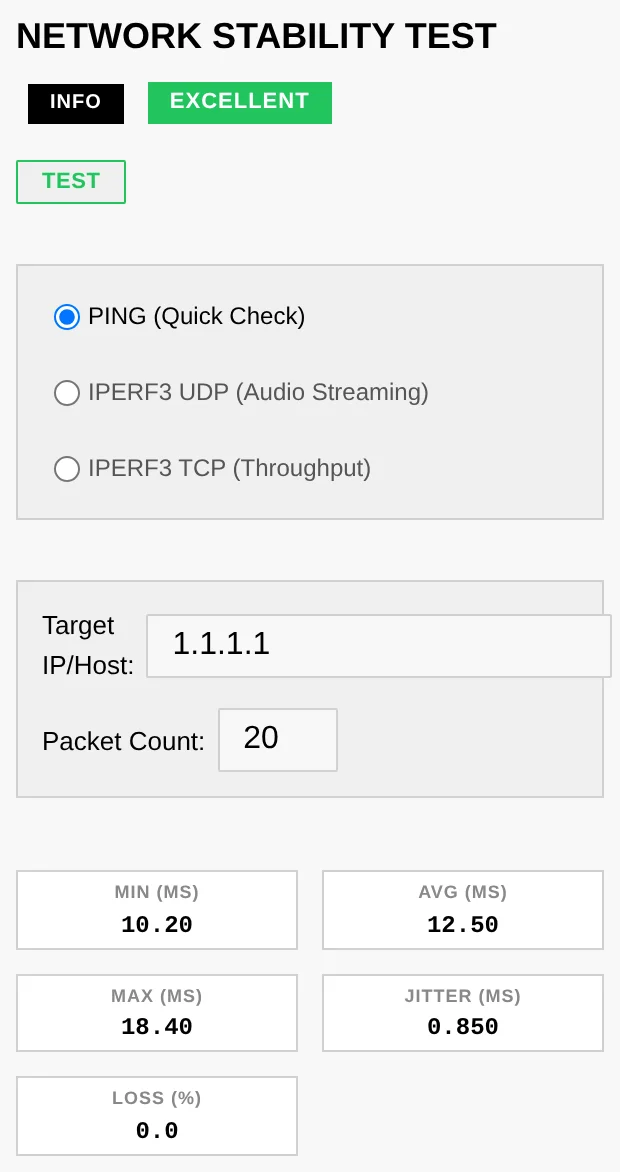
- Network renderers depend on your local network — run the Network test (Performance tab) to check jitter/loss.
A UPnP renderer or media server isn't discovered
UPnP discovery rides on multicast (SSDP). If a device you know is on doesn't show up after a manual scan:
- Make sure the box and the device are on the same subnet / VLAN — multicast rarely crosses network segments.
- On managed switches or mesh Wi-Fi, look for IGMP snooping settings — snooping without an IGMP querier silently eats multicast; either enable the querier or disable snooping for that LAN.
- Some Wi-Fi access points ship with multicast filtering / "IGMP proxy" enabled — try the device on Ethernet to isolate the cause.
The box doesn't appear as an AirPlay speaker
AirPlay is announced over mDNS/Bonjour (UDP 5353 multicast):
- Confirm the shairport-sync service is RUNNING (Services tab).
- The sender (iPhone/Mac) must be on the same subnet — mDNS does not cross VLANs without an mDNS repeater on the router.
- The same multicast filtering culprits as above (IGMP snooping, AP isolation, "client/guest isolation" on the Wi-Fi network) also hide AirPlay devices.
Audio glitches / dropouts
- Watch for a THROTTLED badge on a CPU core (Performance tab) — sustained throttling causes glitches. Improve cooling or ease the CPU governor; on a Raspberry Pi, a badge on every core points at the power supply: use one that can deliver the current the board needs.
- In the RT process monitor, audio processes should show SCHED_FIFO / SCHED_RR (green), not NON-RT (red). Apply the Audio Optimized preset on the Systemd tab.
- Run the Latency test — a high max latency points at scheduling contention.
Manual NAS mount (terminal)
The library picker's Add network share covers CIFS/SMB. If you prefer the
terminal, or need NFS, mount at the OS level — anything mounted under
/mnt is detected as a library source.
1. Create a mount point:
sudo mkdir -p /mnt/music
2. Describe the share — CIFS/SMB or NFS, not both. Replace the address, the share and the credentials below with your NAS's own before running them: that is why these blocks come without a copy button.
For CIFS / SMB, store the credentials first — the quoted heredoc keeps special characters in the password intact — then add the share:
sudo tee /root/.smbcredentials >/dev/null <<'EOF'
username=nasuser
password=naspass
EOF
sudo chmod 600 /root/.smbcredentials
echo "//192.168.1.20/music /mnt/music cifs credentials=/root/.smbcredentials,ro,_netdev 0 0" \
    | sudo tee -a /etc/fstab
For NFS (requires sudo apt-get install nfs-common):
echo "192.168.1.20:/volume1/music /mnt/music nfs ro,_netdev 0 0" | sudo tee -a /etc/fstab
3. Mount and verify:
sudo systemctl daemon-reload && sudo mount -a && ls /mnt/music
_netdev makes the mount wait for the network at boot, and ro (read-only) is
a sensible default for a music library. The SMB version is best left
unpinned — the kernel negotiates the highest dialect both ends support (SMB 2.1
to 3.1.1). As a last resort for legacy NAS firmware you can add vers=2.0;
avoid vers=1.0 (SMB1) unless you have no other option — it is deprecated and
insecure, and modern kernels disable it by default. Back in the picker, hit
refresh — the share appears as a library choice.
Locked out — no admin can log in
Accounts live in /opt/audiogravity/core/users.json on the box. If the admin
password is lost, connect over SSH, remove that file, and re-run the installer
(see 8. Updating → Manual update): when no user file exists, the
install seeds the default admin / admin123 account again. This resets all
accounts and their passkeys — your audio configuration is untouched. Sign in, set a
fresh password immediately, and re-create the other accounts.
HQPlayer Embedded stops after half an hour
The music stops, and the HQPlayer card shows it as unavailable although the service is still running. Nothing is broken: without a licence, Signalyst lets HQPlayer Embedded run for 30 minutes at a time, after which it stops taking commands until it is restarted.
The half hour counts from the moment HQPlayer Embedded starts, not from the moment you play something. If it had been running a while before you pressed play, you get the rest of the half hour, not a fresh one.
To carry on:
- Open Services, find HQPlayer Embedded and click RESTART.
- Start your music again — the restart leaves HQPlayer with an empty queue, and nothing resumes on its own. The player may go on showing the album that was playing until you do.
Your output setting is kept, and so are HQPlayer's own settings: there is nothing to set up again.
A licence from Signalyst removes the limit. It is bought from Signalyst directly, and entered on HQPlayer Embedded's own web page — reachable from the HQPlayer card in Library → Sources, with WEB UI. That page keeps answering while the half hour is up, so you can go there without restarting anything first.
Locked out of HQPlayer Embedded's web page
Audiogravity does not keep the password shown when HQPlayer Embedded was installed, and HQPlayer's own page changes it only if you type the current one. If it is lost, connect over SSH and set a new one with Signalyst's command:
sudo hqplayerd -s hqplayer <new password>
Then restart HQPlayer Embedded from the Services tab: it reads its password only when it starts. HQPlayer's settings are untouched.
HQPlayer Embedded: the DAC hisses instead of playing
Your DAC is receiving a DSD rate it cannot convert. It does not refuse it: it hisses, and keeps hissing after the music stops, until it receives a rate it converts.
- On HQPlayer Embedded's web page, open Configuration and, under SDM settings, set Rate limit to the highest DSD rate your DAC converts: see 6. Outputs & engines → HQPlayer Embedded.
- In the same section, set Bit rate to Auto; on its main page, set Samplerate to Auto as well — or both to a rate your DAC converts.
- Play something: as soon as the DAC receives a rate it converts, the hiss stops.
Passkeys or push notifications unavailable
Passkeys (WebAuthn) and Web Push need Audiogravity reachable over a real HTTPS
domain — they do not work over a bare IP, and --public-url alone is not
enough: you also need the domain, a valid certificate and a reverse proxy. The full
recipe is in
2. Installation → Getting HTTPS.
Version-mismatch banner
The interface and core are on different versions — update the other component. See 8. Updating.
Audio Software: "the system's package manager was interrupted"
Installing, updating or removing a program in Audio Software is refused, with a message that ends:
the system's package manager was interrupted during an earlier operation and refuses every change until it is repaired.
An earlier installation stopped before the end — the box lost power, or restarted, while it was running. The system keeps that installation on hold and accepts no other change until it is finished. The rest of the box keeps working; only the program that was being installed may not, until the last step below.
- Open the browser Terminal (System tab, admin), or connect to the box over SSH.
- Run:
sudo dpkg --configure -a - In Audio Software, if the program that was being installed now shows as not installed, install it again first: that completes it. Then carry on with what you were doing.
"Update failed to start — An update is already in progress"
A previous update was interrupted (power loss, reboot, or a crash mid-install) and left a stale "in progress" marker, so the core refuses to start a new one.
- No action needed in most cases — the core treats a stuck update as dead after 15 minutes and frees the lock automatically. Wait, then retry from the update banner.
- To unblock immediately, an admin can clear the marker from the Terminal and retry:
This only resets the status flag; it does not touch the installed version. Check the current versions afterwards (App title / login screen) — if the core moved but the interface did not, re-run the interface installer (see 8. Updating).sudo rm -f /etc/audiogravity/self-update.state
Changing the profiles between two versions
The services and profiles come with each version of Audiogravity (see 7. Administration → Audio configuration). When one has to change before the next version — support may ask you to try one — a copy of the file is changed by hand, then applied by a command that checks it first. Work on a copy: the box reads the file itself as soon as it is saved, before any check.
- Connect to the box over SSH.
- Make a copy, and edit it:
sudo cp /etc/audiogravity/audio-config.json /root/audio-config.json sudo nano /root/audio-config.json - Check it:
A mistake is shown with where it is and why; nothing changes. Correct it and check again. The core checks it, so it must be running: if the command says it does not answer, start it withsudo /opt/audiogravity/ag-apply-audio-config --check /root/audio-config.jsonsudo systemctl start ag-core-server. - Apply it:
The copy takes the file's place, the core restarts, and the command says how many profiles it now runs. Should the core not start on it, the command puts the previous file back.sudo /opt/audiogravity/ag-apply-audio-config /root/audio-config.json
The change lasts until the installer runs again — at the next update, or a reinstall —
which puts the shipped file back and keeps the one it replaces as
/etc/audiogravity/audio-config.json.previous.
"License ended on …" in the licence panel
Your licence was issued to run until a date, and that date has passed. Nothing is broken and nothing was tampered with: Audiogravity keeps running in Starter Edition, your music and settings are untouched, and the Pro features come back the moment a current licence is installed.
The panel keeps your Order ID on screen — you need it to renew. Use License portal
to download a .lic for an order you have already paid for, or Upload new license if
you have the file already.
A licence that has ended is not the same as "License file is invalid or bound to a different device". That message means the file does not match this installation — see the next section.
Licence not recognised after a reinstall or a new machine
Reinstalling the operating system, or moving Audiogravity to another machine, gives the box a new Device ID. Your licence belongs to the Device ID it was activated on, so the new installation refuses it, with one of these messages:
- "No license found for this key on this device." — when you check your key;
- "This license is bound to a different device." — when you upload your old
.licfile; - "License file is invalid or bound to a different device." — in the licence panel, when the old file came back with a backup.
The licence portal cannot help here. Write to [email protected] with your Order ID (in your purchase email) and the new Device ID, shown in the licence panel with a copy button: a licence reset is available on request.
Getting help
- Bug reports & questions — open an issue.
- Logs — the System event log (in-app) and
journalctl -u ag-core-server/journalctl -u <service>from the Terminal. - More answers on the website FAQ.