 Audiogravity
4. Listening
Once your box is set up, playing music is the same whatever the source — local files, Qobuz, Tidal, HIGHRESAUDIO, internet radio or a UPnP server all flow through one set of controls.
The Now Playing bar
A sticky Now Playing bar sits above the footer and shows all active audio sources at once, with quick transport — previous, play/pause, next, and volume. Repeat and shuffle are in the fullscreen player — and on a phone, previous too: there the bar gives its room to the title and the artist, a line each.
Opening the fullscreen player. There are three ways in, and tapping the bar itself is not one of them:
- On a computer — the small tab at the top-right corner of the bar.
- On a phone or tablet — swipe up on the bar, starting from the track title rather than from the buttons, which keep the touch for themselves.
- From the Library — it opens by itself as soon as you start something playing.
Tapping the cover art does something else: it opens the album's details — Album, Artist, Year, Genre, Format, Position, Source — and its tracklist.

The fullscreen player
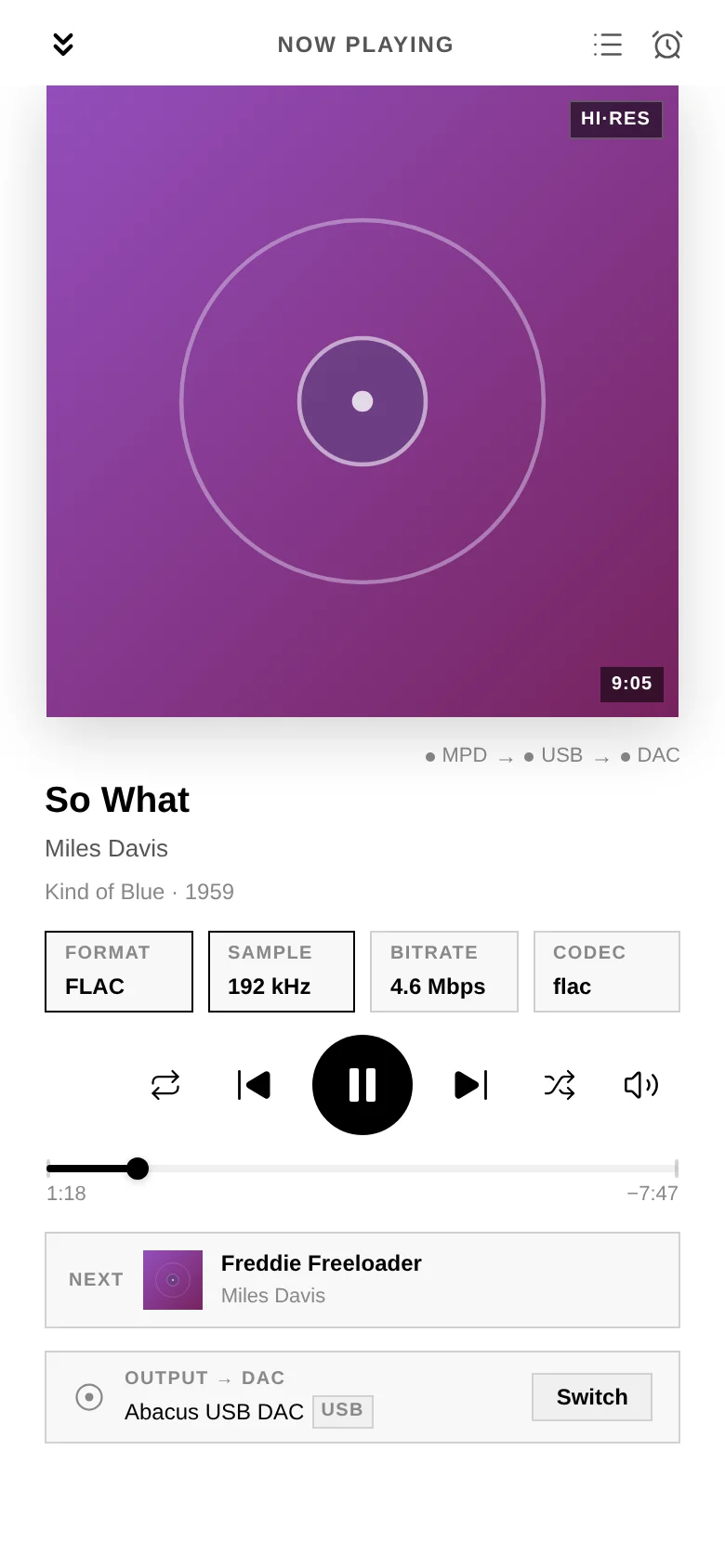
- Cover art with a dynamic background derived from it, a seekable progress bar — Live in its place for an internet radio station, which has no end — and full transport: repeat · previous · play/pause · next · shuffle.
- Album details — Album, Artist, Format, Genre, Year, Position, Source and the full Tracklist.
- A Queue view for what's coming up (see below).
- On a Qobuz or HIGHRESAUDIO track, an Add to playlist button beside the title puts the track into one of your playlists on that service — see 5. Library & streaming.
- Swipe between active sources; close with the back button or swipe-down.
- When playing to a network renderer, a "Routed to UPnP renderer" indicator makes the destination clear.
Controls tell you the truth. Audiogravity waits for the player's answer before showing a command as done. If the player refuses one, the control returns to its real state rather than showing a change that never happened — a play/pause icon that flips back, or a volume slider that glides back to where it was, means the command was declined, not that your tap was missed. The commonest reason is an output with no volume control of its own. Queue actions say it in words, carrying the player's own reason. Jumping in a track is declined in three cases: a live radio stream has no end to jump to; the first seconds of a Tidal track's first listen, while its seekable copy is still arriving (wait a moment and try again); and a second jump asked for while the first is still being applied. See 9. Troubleshooting.
The Queue
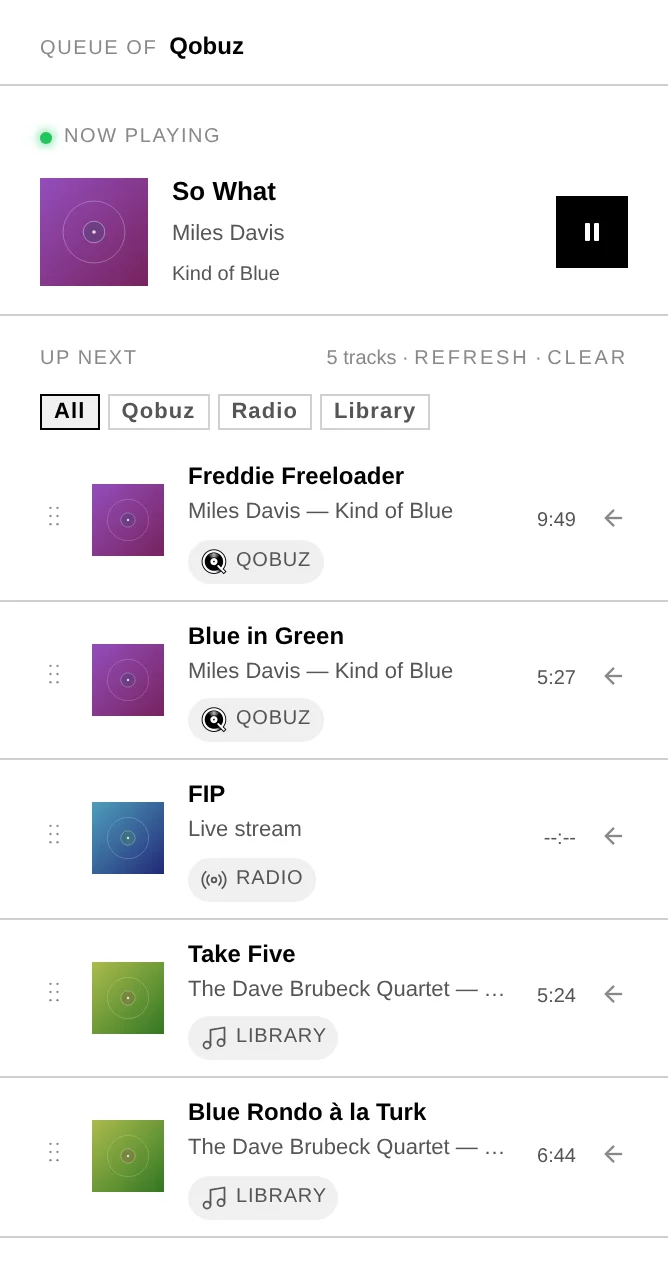
The Queue view shows the current track and what's coming up — for every source, including Qobuz, Tidal and HIGHRESAUDIO albums, with their real titles and artists (they survive a restart of the box, too).
- The header names the actual source — playing internet radio reads "Radio" and shows the station's logo. The same holds when you cast to a network speaker: the badge names where the music comes from (Qobuz, Library, your media server's name), and the speaker appears as the output — because it is the destination, not the source.
- A badge reading External means the music was started from another app, not from Audiogravity. Your box also behaves as a speaker other apps can send music to, so a phone running JPLAY or BubbleUPnP can start playback without going through it. Music started at HQPlayer's own remote is badged HQPlayer. Either way you still see what is playing, and the badge tells you the queue is not one Audiogravity filled. When you send music to HQPlayer, the badge names the music — your library, Qobuz — not HQPlayer.
- When the queue mixes sources — say a radio station followed by a Qobuz album — each upcoming track carries a small source badge telling you where it comes from, and a filter bar lets you view one source at a time. Filtering only changes what you see: nothing moves or stops playing, and the current track always stays in view.
- Remove an upcoming track with its Remove button or a left-swipe — the same gesture used across the app's lists. Clear empties the queue, and respects the active filter. A Roon queue is changed from the Roon app: here it has no Remove button or swipe, and Clear is greyed out.
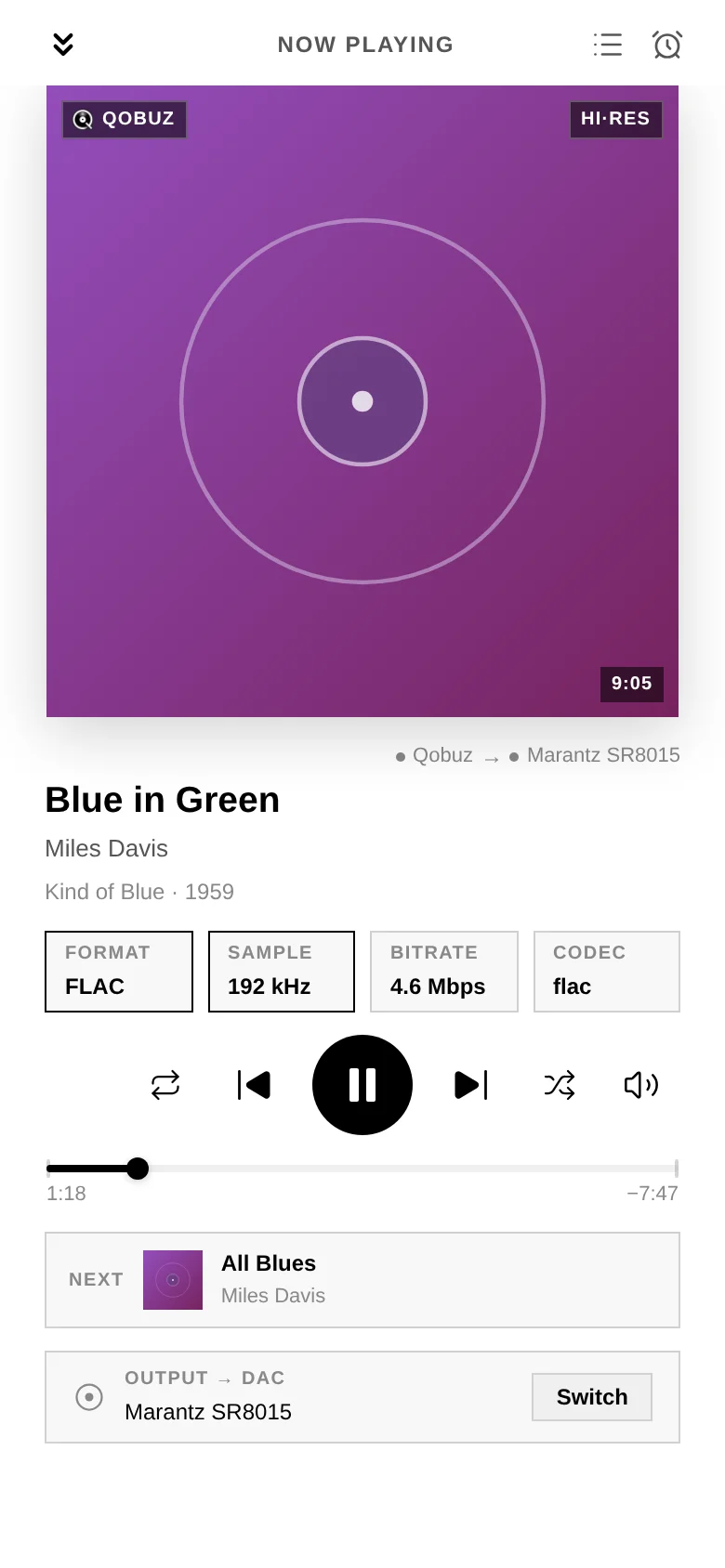
Casting hands the audio over: what was playing on your DAC stops, and the speaker becomes the output. The hi-fi readout is absent here because a network speaker fetches the stream itself and reports no format back — what it receives is the file as the service serves it.
The live hi-fi readout
On every track change, Audiogravity shows exactly what's reaching your DAC:
- The codec (FLAC, MP3, AAC, DSD…), sample rate, bit depth — Lossy for a compressed format such as MP3 or AAC, which has none — and instantaneous bitrate.
This is your at-a-glance confirmation that a Hi-Res track really is playing at its native resolution.
DSD plays at full volume. While a DSD track plays, Audiogravity sets the volume to 100, and the volume control gives way to a padlock. When the DSD ends — a PCM track follows, or playback stops — the volume goes back to where it was. This happens with the app closed too, and for a DSD track started from another app: keep your listening level on the amplifier. Through HQPlayer, or on a network speaker, the volume stays yours to set.
The stream-origin badge
A badge in the player always tells you where the audio is coming from — Tidal, Qobuz, HIGHRESAUDIO, your UPnP server (by name), a radio station (by name), a local file, or AirPlay. You see it in the Now Playing bar, on the full-screen player and on the Pipeline tab's Now Playing card. No guessing which source is live.
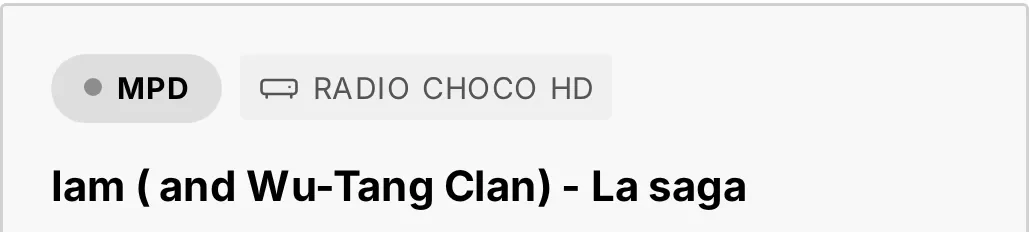
The transport pill on the left names the engine carrying the audio — here MPD. On its own it would tell you nothing about the music: MPD plays local files, Qobuz, Tidal, HIGHRESAUDIO and radio alike. The badge beside it names the origin, and for a radio station or a UPnP server it gives the name of the station or the server.
Profiles — switch whole chains in one tap
A profile is a ready-made scenario for your audio system, named after what it runs. Switching one automatically starts the services it needs and stops the conflicting ones, so the chain is always coherent. For example: Roon Bridge + HQPlayer NAA for serious listening, UPnP Renderer to expose the box as a UPnP renderer, MPD for your own music library. The profiles come with Audiogravity (see 7. Administration).
Each profile tile shows the services it starts/stops, the output they are set to play
to (e.g. usb, toslink), a live health bar of those services — running (green),
failed (red), stopped (grey) — and when it was last switched on since
Audiogravity last started. Every switch asks for confirmation. The services to
stop are stopped first, then the others started. If an essential service cannot be
stopped, nothing is started; any other failure is named in a message, and the switch is
not undone.
If a service of the profile in use fails, its tile reads FAILED in red; tap Activate on it to start again what failed. The other profiles keep their state, with a small failed badge counting it.
ALL / ACTIVE / IDLE filters the tiles, the active profile first. Click a profile's name for the full list of its services and the switches made from this browser; the HISTORY panel beside the tiles lists those switches for every profile.
Sleep timer
A built-in sleep timer pauses playback after a set duration — for falling asleep to music without leaving the system running all night.
Portrait lock
On phones and tablets, Audiogravity stays in portrait by default. A Portrait Lock switch in Settings (the gear in the top bar) turns it off if you prefer landscape — and on a device you can't rotate, the Continue in landscape button on the rotate screen lets you carry on (it switches the lock off for you). On a computer there is nothing to lock: the setting has no effect there, and the interface follows your window whatever its shape.
Where the audio goes
The output line at the bottom of the fullscreen player always names your destination — your DAC or the speaker you selected — even when nothing is playing, and marks it Stopped when it sits idle or Unreachable when it cannot be contacted. Any reason the sound is not coming out appears on that same line.
Choosing where music plays — your local DAC, a network renderer, HQPlayer or AirPlay — is covered in 6. Outputs & engines. Connecting streaming services and browsing your library is in 5. Library & streaming.