 Audiogravity
6. Outputs & engines
Audiogravity can send the same music to very different destinations — a locally attached DAC, a network renderer across the room, or HQPlayer's DSP engine. The output selector switches between them in one tap.
The output selector
The list of outputs opens from Library → Sources, with the Outputs button at the top of the view — or with Switch, on the output line of the fullscreen player. It lists every physical output the box exposes (USB, optical, HDMI…) alongside the network renderers Audiogravity has discovered, and switches the active output when you pick one. Streaming and HQPlayer connections are managed in Library → Sources itself.
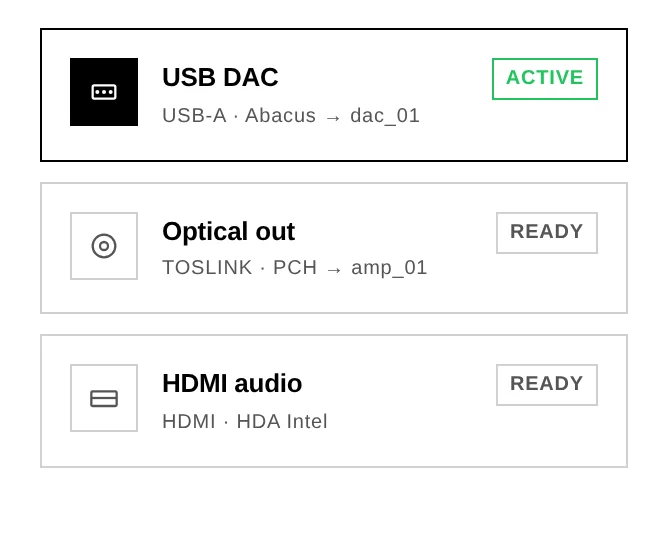
Switching is designed to be seamless. MPD's output flips gapless — no silence, and a cast already playing keeps going on the new output. AirPlay is the exception: its receiver has to restart to change output, so the panel warns you first that it will interrupt any AirPlay session in progress. And when a switch does not take, the panel tells you instead of pretending it worked — it shows the reason and rolls back to the real state.
Local DAC
The default: audio goes straight from MPD to the DAC attached to the box (USB, HAT, HDMI, S/PDIF), bit-perfect and with no network round-trip. This is the purest path and the one the guided setup wires up first.
A HAT — a DAC board stacked on a Raspberry Pi's GPIO header — is the one case that needs a manual step before it can be selected: Linux does not detect it on its own. See 9. Troubleshooting → My DAC is not in the output list.
Network UPnP renderers
Audiogravity is a UPnP Control Point: it discovers every renderer on your LAN — network amplifiers, dedicated streamers, DLNA speakers (Marantz, Linn…) — and drives them directly from the interface. Browse a source, hit Play, and the stream reaches the renderer at full resolution, bit-perfect, without touching the server's own audio path.
- The output selector switches between physical DAC outputs and network renderers. A left-swipe on a renderer removes it from the known list, once you confirm (a renderer still on the network simply reappears at the next scan).
- A live "Up next" strip shows the track being loaded onto the renderer.
- Transport (next / prev / pause / seek / volume) is routed through the renderer that owns the queue.
- You can cast your local NAS/USB library to a network renderer too, exactly like a streaming service.
- Casting hands the room over. What was playing on the box's own DAC stops as the speaker starts — one piece of music, in one place. The hand-over happens at the last moment, so a speaker that has left the network, or a streaming link that expires while it is being fetched, leaves what you were listening to playing rather than stopping it for nothing.
A speaker that does not answer stops the play. If the renderer you selected is asleep, off the network or still reconnecting, Audiogravity refuses the play and says so, rather than quietly sending the music out of the local DAC — the wrong room, with no explanation. Wake the speaker up, or pick another output.
Your box's own renderer. Audiogravity advertises itself on the network (via upmpdcli) so other apps can cast to it. That self-entry appears in the renderer list as a non-selectable "This device · receives external casts" row — because playing on the box is what the Local DAC output already does.
Driving the box from another app. Because Audiogravity advertises a standard UPnP renderer, any control point on your network can send music to it — JPLAY on iPhone, BubbleUPnP on Android, and others. The queue and the volume answer as they would from Audiogravity itself, and the player badges the track External so you can see the music was started elsewhere. Controllers that speak only OpenHome, such as Linn Kazoo, need
openhome = 1in upmpdcli's configuration — editable from the Config tab.
The signal path, and the chain you describe
The Pipeline tab draws the route your music takes, device by device: the box, the converter, the amplifier, the speakers, and the cables between them. Audiogravity detects everything that happens inside the box on its own — the services, the formats, the outputs your hardware exposes. What it cannot detect is what sits after the box: no machine can know that the optical cable goes to a Cambridge amplifier and then to a pair of Harbeths.
That part is a description you write once, and Audiogravity never changes it. A new box arrives with an example chain — a box, a converter over USB and optical, an amplifier, speakers — meant to be replaced by yours. Open Pipeline → CONFIG to do it. It is a text file, so a computer is the comfortable place to write one from scratch, but it can be reached from a phone too.
Until it describes your gear, the signal path can look empty. On a phone, the view draws a device only when audio is actually flowing through one of its declared connections, and the example chain declares USB and optical. A box playing through a HAT board — a converter mounted directly on a Raspberry Pi's connector — matches neither, so nothing lights up. The view says so, and names the output it found next to what your description declares: that is your cue to describe the real chain. On a larger screen the full graph still shows every device you declared, but none of them lights up either. See 9. Troubleshooting → The signal path is empty.
HQPlayer
If you run HQPlayer on your network, Audiogravity integrates with it three ways:
- DSP remote — change the interpolation filter, noise shaper, output mode and volume on your HQPlayer instance from the interface. It's auto-discovered on the LAN — connect in one tap. If you use more than one HQPlayer, each keeps the filter, noise shaper and mode you chose for it.
- NAA endpoint — the box can run HQPlayer's Network Audio Adapter so HQPlayer streams to it and out to your DAC.
- As your output — the Use as output switch on the HQPlayer card sends your library through HQPlayer's DSP engine instead of straight to the local DAC.
HQPlayer can also run on the box itself: see HQPlayer Embedded below.
Audiogravity reads the identity of the HQPlayer it connects to — Desktop or Embedded, its engine, and which major version it runs — and shows it on the card. That version matters: HQPlayer 5 talks to a NAA 5, HQPlayer 6 to a NAA 6, and a mismatched pair plays nothing. So the NAA offered in Audio Software follows the HQPlayer you are connected to rather than the line already on the box, and both the Use as output switch and playback itself refuse a pair that cannot work, naming the two versions instead of letting the music fail without a word.
Use as output
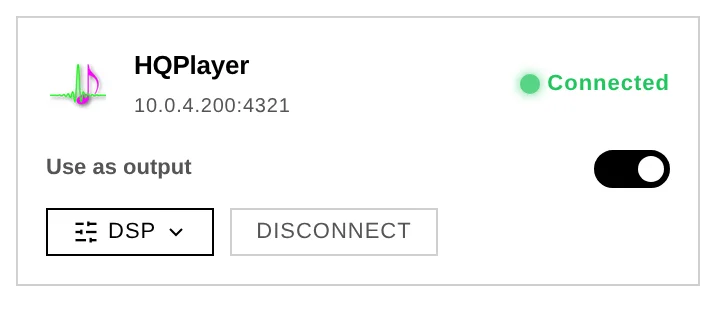
With the switch on, playing an album routes it to HQPlayer, which processes it and sends it back to your DAC through the NAA. The player badges the track with where the music actually comes from — Library — and the signal path shows the full chain: Library → HQPlayer → NAA → your DAC. HQPlayer is a processor in that chain, not the source of the music.
The setting lives on the box, not in your browser: turn it on from your phone and your laptop shows it on too. Turning it off releases the sound card so local playback works again immediately.
Playback starts without making you wait. A heavy processing chain can take half a minute to produce its first note — upsampling a DSD album, for instance — so Audiogravity does not hold your tap while it checks. It watches in the background, and if no sound actually comes out it tells you under the output, a few seconds later. A track that plays normally shows nothing: silence there means it worked.
Audiogravity refuses to turn the switch on when nothing would come out — no HQPlayer configured, or its NAA not running on the box — and tells you which of the two is missing rather than sending your music into silence.
You are told what HQPlayer kept. HQPlayer can accept a track and then drop it without saying so — a file it cannot reach, or cannot decode. Each time it sends music, Audiogravity reads HQPlayer's playlist back and names the tracks that did not make it: an album plays with what HQPlayer kept, a play it kept nothing of is refused at once, and adding to the queue tells you when a track was lost.
What the player shows while HQPlayer is your output. The progress bar works: it knows how long the track is, it advances, and you can drag it to move around inside the track — HQPlayer is asked to jump, exactly as your local output would be. This holds track by track through an album.
The title, the artist and the cover follow the track too, all the way through an album — as long as the album was started from Audiogravity. Two cases show no title, and both are cases where it cannot know what is playing:
- Playback you started from HQPlayer's own remote. You get "processor active" and the format.
- A playlist changed inside HQPlayer while Audiogravity was playing to it: labelling stops rather than putting your album's titles on someone else's tracks.
Internet radio shows the station, not the song. A station announces its current track inside the audio stream, and through HQPlayer it is HQPlayer that receives that stream. So a radio played this way shows the station and its logo, where the same station on your local output shows the song — or, for a station that names none, its own name.
What can and cannot go through HQPlayer
One question decides it: what format the track is in. Every source Audiogravity can play reaches HQPlayer, so where the music comes from makes no difference.
Which sources reach HQPlayer:
| Source | Through HQPlayer |
|---|---|
| Your local library | Yes |
| Internet radio | Yes |
| A UPnP media server (MinimServer, Plex…) | Yes |
| Qobuz, Tidal, HIGHRESAUDIO | Yes |
| Roon | Not applicable — a Roon zone is its own output chain |
They all get there the same way: Audiogravity hands HQPlayer a web address on your own network and HQPlayer fetches the music itself. For Qobuz and HIGHRESAUDIO that address redirects straight to the service's servers, so your box hands over an address and steps aside — it never carries the music. Tidal is the one exception: it delivers its audio in a form that has to be converted first, so that stream does pass through the box. Nothing is re-encoded either way; the audio is bit-for-bit what the service sent.
Keep Tidal on a lossless quality. Its lower quality settings (HIGH, LOW) produce no sound at all — on every output, not only through HQPlayer. With HQPlayer as your output you are told so before the album starts, and the same applies to an album Tidal does not publish in lossless.
Which formats HQPlayer decodes:
HQPlayer plays FLAC, WAV, AIFF, WavPack, MP3, DSF and uncompressed DFF, and cannot decode anything else — AAC, ALAC, M4A/MP4, OGG/Opus, APE, WMA, AC3/E-AC3, DTS, Musepack, TAK, TTA, Shorten, Speex, AMR, MKA/WebM, AIFC, nor DST, the compressed flavour of DFF.
You do not have to think about this. When a track is in a format HQPlayer cannot read, Audiogravity converts it to FLAC as it hands it over — an ALAC album in your library, an M4A track your media server publishes, a station broadcasting in AAC. The conversion is lossless and your own files are never touched: what is converted is the copy going out. You can still move inside a converted track, exactly as you would in any other. Nothing to set up, and nothing to notice beyond a couple of seconds before an album starts.
DSD is the exception, on purpose. Turning DSD into PCM would change the music itself, so Audiogravity never does it silently: a DST-compressed DFF is refused, with the reason. The same holds for an address Audiogravity only passes on to HQPlayer without carrying the audio — there is nothing for it to convert. To hear one of those, play it on the local output: turn Use as output off — or, with HQPlayer Embedded, activate a profile that does not run it. Speex and AMR, two formats made for speech rather than music, are not converted either: they are refused the same way, with the reason.
An album starts on its first track. HQPlayer inspects every track before accepting it, and that inspection is what sets the conversion going. So an album that needs converting starts on its first track and fills in behind it, rather than making you wait for the whole record.
The same file can be named two ways. M4A and MP4 are one container under two names, and media servers disagree: MinimServer publishes a track as
.m4a, Plex publishes the very same file as.mp4. It is one format, not two problems — and both are converted the same way.
This matters most for internet radio, where many Hi-Res stations broadcast in AAC — those stations play through HQPlayer like any other, converted as they arrive.
One output at a time. HQPlayer and a network renderer cannot both be your output. If both are selected, Audiogravity asks you to turn one off instead of guessing which device you meant.
HQPlayer Embedded
HQPlayer can also run on the box itself. HQPlayer Embedded is the version of HQPlayer that Signalyst, its maker, publishes for a machine without a screen: you set it up from a web page, and the processing happens on the box, next to your DAC, with no computer to keep on. It needs a licence from Signalyst.
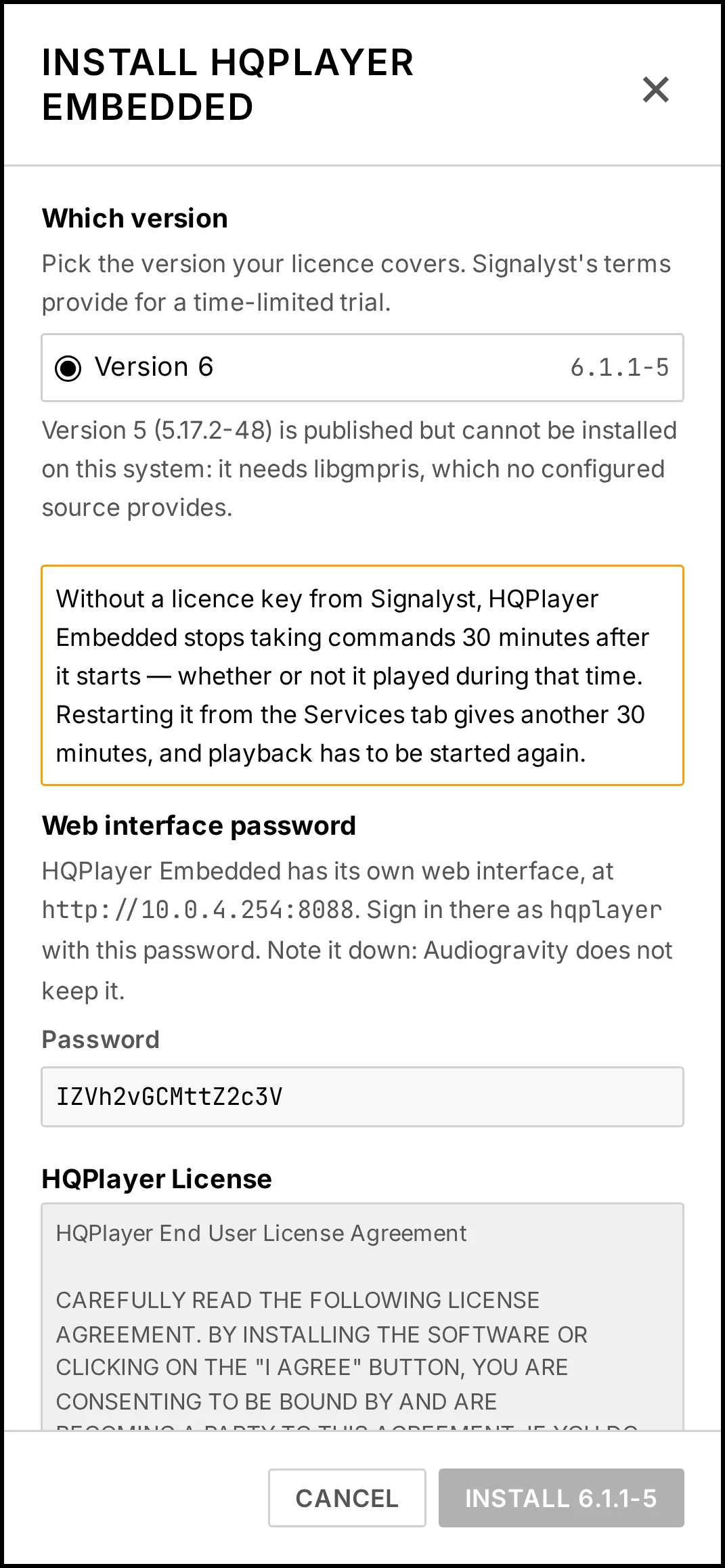
Without a licence, it runs for 30 minutes at a time. Signalyst lets you try HQPlayer Embedded before buying one, and that trial stops 30 minutes after HQPlayer Embedded starts — whether or not you played anything meanwhile. It keeps running but stops taking commands, so Audiogravity shows it as unavailable and the music stops. Restart it from the Services tab, start your music again, and you have another half hour. A licence from Signalyst removes the limit. See 9. Troubleshooting → HQPlayer Embedded stops after half an hour.
Installing it. HQPlayer Embedded has a card in Audio Software; if your box cannot run it, the card says why.
- Click INSTALL.
- Choose the version your licence covers — Signalyst publishes several side by side. A version your box cannot run is listed with the reason, and cannot be chosen.
- Read Signalyst's licence, then tick I have read and accept the terms above.
- Note down the password shown under Web interface password: you need it to open HQPlayer's web page, and Audiogravity does not keep it. You can type your own instead.
- Click Install. Once it is done, HQPlayer Embedded is running.
Choosing its output. HQPlayer Embedded has no output after installation and plays nothing until you give it one. Choose it in Audiogravity, as for any player on the box:
- Open Config and click EDIT CONFIG on the HQPlayer Embedded tile.
- In Guided, under Audio output, pick the output your DAC is connected to, then click Apply changes.
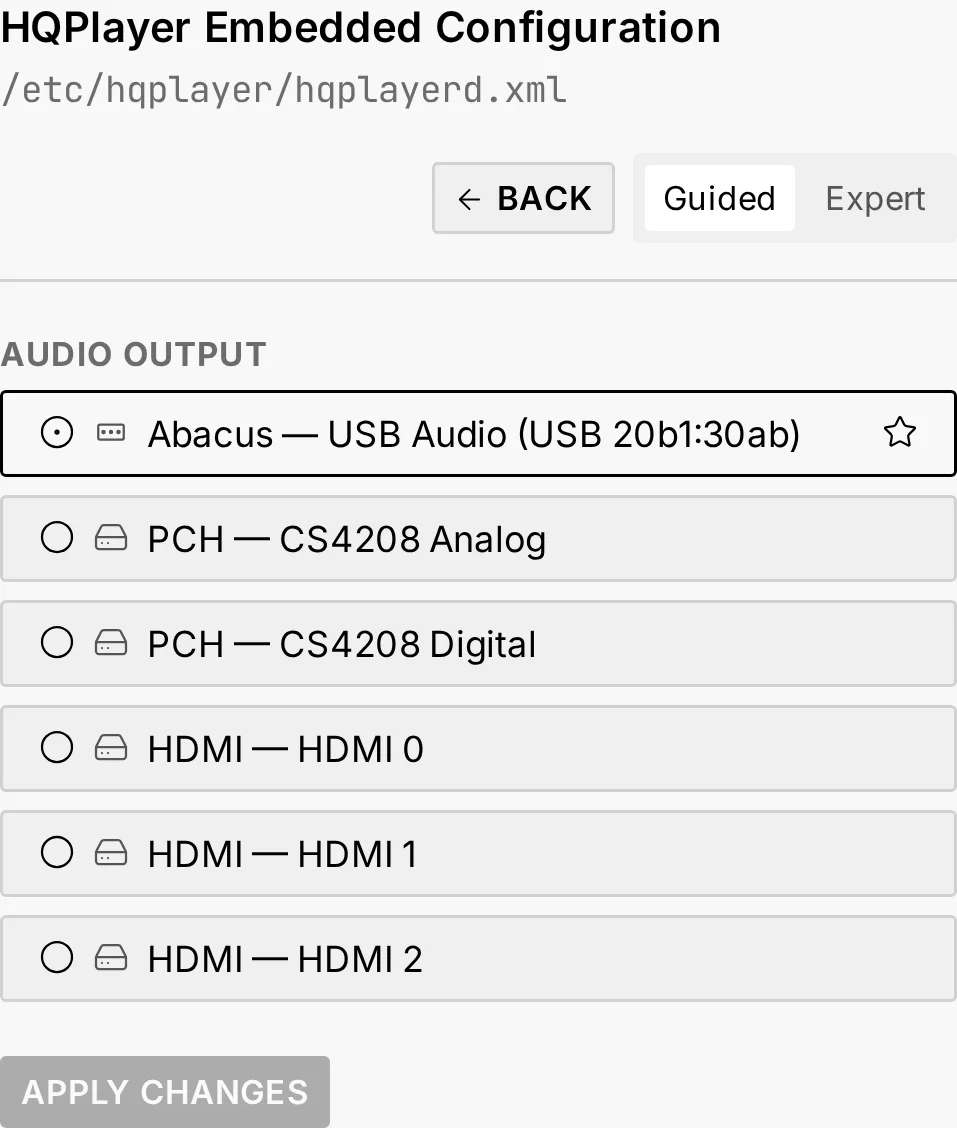
The tile then shows CONFIGURED and the output. Only the output changes: HQPlayer's other settings stay as they are, which is why there is no Reset to default for it. If HQPlayer Embedded is running, it restarts to take the new output, so whatever it is playing stops for a moment.
Its web page. HQPlayer's own settings, its filters, modulators and DSD rate among them,
are set on its web page. The quickest way there: open the Library, go to Sources, and
on the HQPlayer card click WEB UI — it opens in a new tab. The button is there
whenever HQPlayer Embedded is the one running on your box, and it stays available even when
the card says it is offline, which is when you are most likely to need it. Otherwise, type
http://<your box>:8088 in your browser — your box's address followed by :8088.
Sign in as hqplayer with the password noted at the install. You can change it there
too; it asks for the current one. Lost it? See
9. Troubleshooting → Locked out of HQPlayer Embedded's web page.
Its DSD rate, before the first play. HQPlayer Embedded comes set to DSD256. If your DAC plays DSD but not that high — its specifications say how far it goes — lower it before playing anything:
- On its web page, open Configuration.
- Under SDM settings, set Rate limit to the highest DSD rate your DAC converts: 2822400 for DSD64, 5644800 for DSD128, 11289600 for DSD256.
- In the same section, leave Bit rate on Auto, or set it to a rate your DAC converts: when it is set, that is the rate HQPlayer Embedded uses.
A DAC does not say which DSD rates it converts, and some accept one they cannot handle: they hiss instead of playing — see 9. Troubleshooting → The DAC hisses instead of playing. The Samplerate list on its main page changes the rate only until HQPlayer Embedded restarts.
Switching to it. Two profiles run it. Both stop the NAA, Roon Bridge and UPnP Bridge, so that HQPlayer has your DAC to itself:
- MPD + HQPlayer Embedded keeps MPD running beside it: your own music library plays through HQPlayer Embedded, as well as everything else.
- HQPlayer Embedded stops MPD too: streaming services, internet radio and media servers play through it, but not your own library.
Any other profile switches back, except AirPlay's, which starts AirPlay alongside whatever is playing. The NAA and HQPlayer Embedded can both be installed: the profile you choose decides which one plays. On a box without HQPlayer Embedded, both profiles show as UNAVAILABLE.
Playing music. While HQPlayer Embedded runs, Audiogravity plays through it: what you start from the Library goes to HQPlayer Embedded, and from it straight to your DAC. The HQPlayer card in Library → Sources shows This box, with Use as output on and locked for as long as it runs. An HQPlayer you had chosen on your network is kept: when HQPlayer Embedded stops, the card returns to it, with its own Use as output setting. The formats HQPlayer cannot decode are converted here too — see What can and cannot go through HQPlayer.
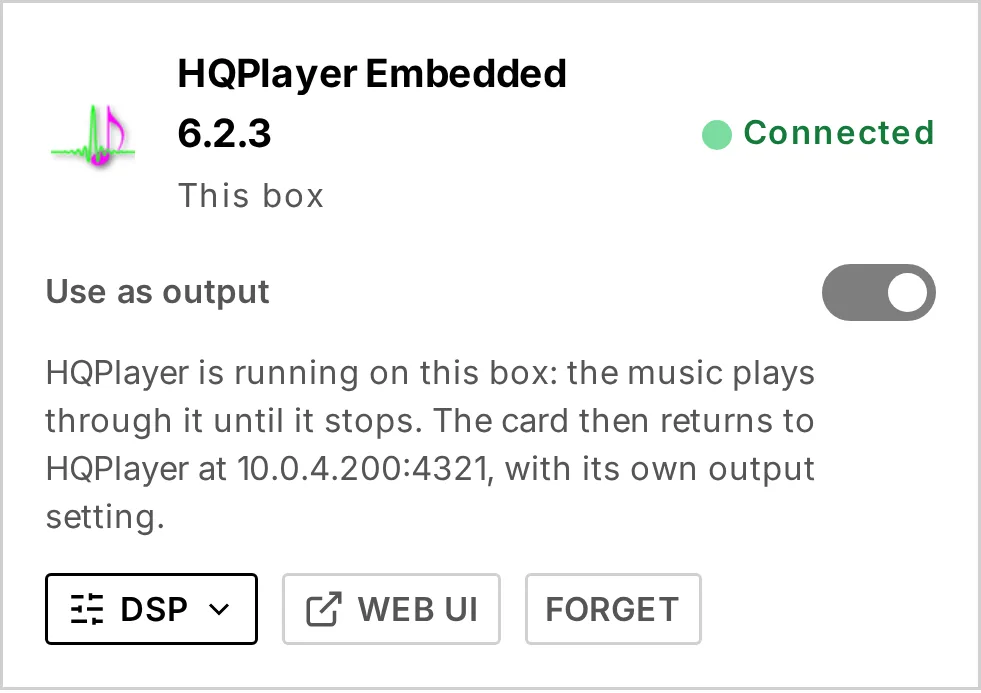
If something did not go through. When HQPlayer Embedded is installed but a step after that could not be done, the result says Install Incomplete and what is left to do. If its password could not be set, the card shows Set web password: click it to set one. HQPlayer then restarts, so anything it is playing stops for a moment.
Updating and removing it. UPDATE brings the latest release of the version you chose, and never moves you to another one. To change version, uninstall it and install it again. A plain UNINSTALL keeps HQPlayer's settings and password, and a reinstall finds them again. To erase them too, tick Also delete its settings and data — keep a copy of your licence first, as this cannot be undone.
Roon
Audiogravity works with a Roon Bridge endpoint and connects to your remote Roon Core for metadata and transport — so a Roon zone can sit alongside your other outputs in the same interface.
Setting it up. Nothing to configure on the box, and no file to edit:
-
Install Roon Bridge from the Audio Software page, and leave it running. That is what tells Audiogravity that Roon belongs on this box — it then looks for your Core on the network by itself. You do not need to know your Core's address, and its port is fixed by Roon, so there is nothing to set for either.
-
Authorize the extension in Roon. Open Roon (the desktop or mobile app connected to your Core) → Settings → Extensions. An extension named “Audiogravity” appears in the list — click Enable next to it. That's the one-time authorization, and the only thing that grants Audiogravity any access: Roon hands it a token, the box stores it, and it reconnects on its own afterwards (no need to re-authorize on restarts).
Until you click Enable in Roon (step 2), the connection stays unauthorized and Roon data won't appear. The Roon card in Library → Sources says where you are: whether Roon Bridge is running here, whether a Core is answering, whether the extension is still waiting for you — with the name to look for — or how many zones are connected. Once you have clicked Enable, I have enabled it on the card checks again straight away.
If the Core cannot be found. On a network where the search cannot reach it — a Core on
another segment, or a router that blocks the broadcast — name it in
/opt/audiogravity/core/.env and restart the core:
ROON_CORE_HOST=192.168.1.50 # the IP of the machine running Roon Core
An address that answers is used straight away; one that does not is not a dead end, the search still runs.
AirPlay
The box can act as an AirPlay receiver (shairport-sync) — stream to it from an iPhone, iPad or Mac, and it plays through the same output chain, with the same now-playing readout.
Seeing the whole chain
The Audio Pipeline view (Pro) draws your entire signal chain as a live graph — controller → server → streamer → converter/amp → output. Animated particles mean audio is flowing, and a link takes the colour of the service carrying the stream — LEGEND shows which is which. A FULL RES badge marks the cable to your converter when it can carry, untouched, the format the box is sending.
Beside the graph, the controls zoom (FIT frames the whole chain), RESET the layout, and show or hide the LEGEND, a MINIMAP and the NETWORK links. Two switches, off by default, add your idle analog sources (turntable, tuner…) and the controllers — the phones and apps that drive the box.
Beside the graph — under it in a narrower window — the same chain reads as a list: one card per stream, with the chain it takes and, for a service that can be steered, pills to send it to another output (USB, optical, HDMI…). Under the list — beside it in a narrower window — Audio events notes when a source starts or stops playing, and each new track — while the view is open on a computer. On a phone, the list is what the tab shows.
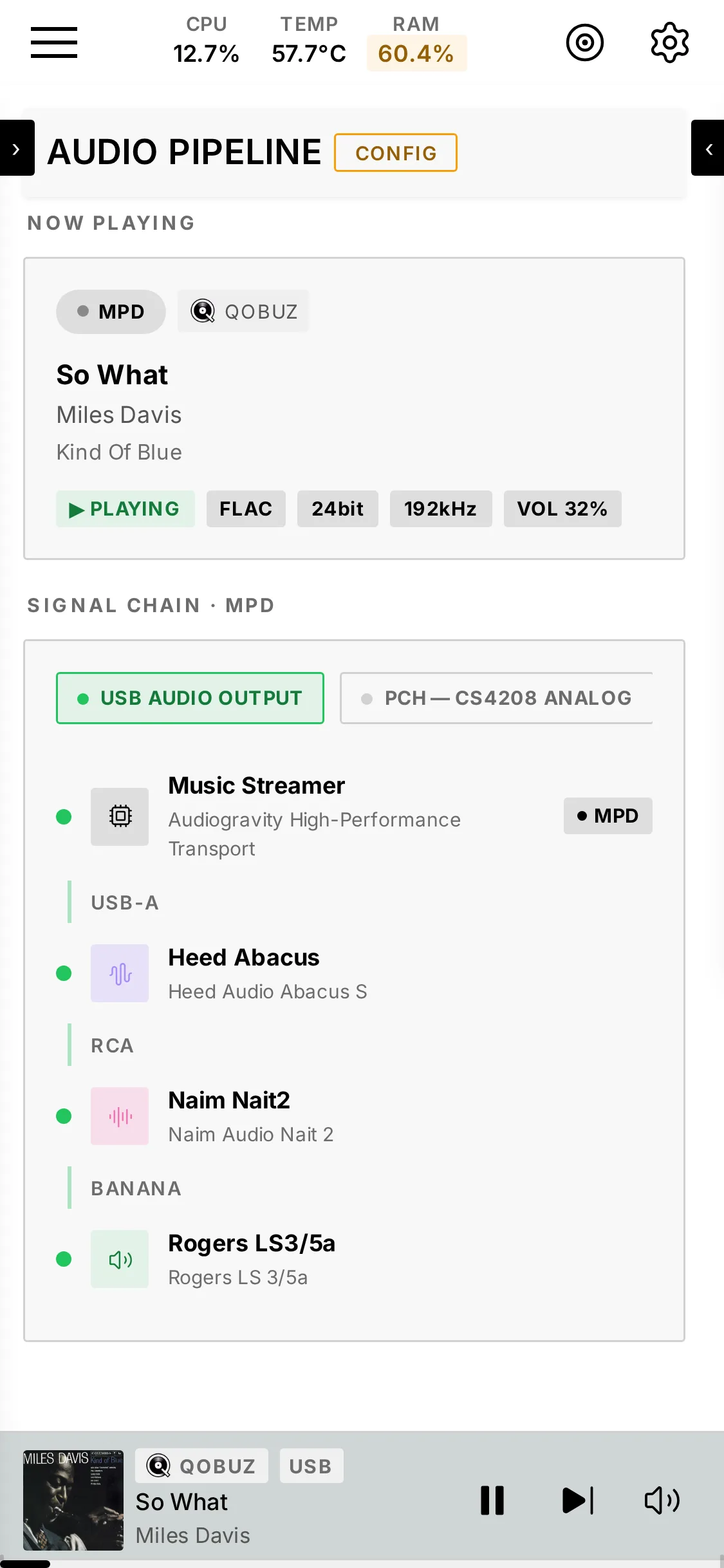
The graph is drawn from a map you own, audio-topology.json — see
7. Administration → Audio topology
to edit it, and the same section for the tuning that keeps this path clean.