 Audiogravity
7. Administration
Everything you need to run the box lives in the interface — no SSH required. Most of this section is available on Starter: Profiles, Services, Audio Software, System, Admin — and Config, the configuration editor and its guided setup. Four tabs are Pro: Systemd tuning, Performance tuning, the Audio Pipeline map and the Library.
The Admin tab
The Admin tab gathers everything about accounts and the box's relationship with Audiogravity: the user cards (below), unread announcements, the update banner — and the licence panel, where a Starter install lands when it taps a locked Pro tab.
At the bottom of the tab, the UI performance cockpit measures the app itself in your browser: the live updates it receives, its timers, the memory it uses (in Chrome, Edge and other Chromium browsers) and how long the page has been open. It is a diagnostic aid — nothing there changes how the box plays.
Users & access
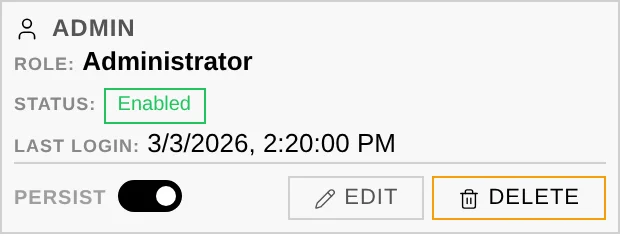
User management lives on the Admin tab — one card per account, with an online indicator for users currently connected. Three roles control who can do what:
- Admin — full access, including user management. The admin account created at installation cannot be deleted, disabled or demoted; any other admin account can be, by another admin. Nobody can delete, disable or change the role of their own account.
- User — everything except what is kept for admins: managing accounts, the guided setup of the audio stack and its network shares, the Config editor's Guided mode and CONFIGURED badges, the SIMULATE switch of Audio Software, restarting or rebooting the box, updating Audiogravity, the support report, the terminal and removing the licence. The Admin tab is not shown to users.
- Guest — can look at every tab except Admin and control what is playing — play and pause, skip, seek, volume, repeat, shuffle and the sleep timer, on the box, a network speaker or HQPlayer — but not start something else, send it to another output, change settings, start or stop services, or read the logs.
Changing an account's password or role, disabling it or deleting it signs that account out on every device where it is open. When you change your own password, you stay signed in on the device you changed it from.
Passkeys — the Passkeys button on your own card registers WebAuthn credentials (Face ID, Touch ID, a hardware key). Each passkey is tied to one device and can be removed individually; use it instead of a password at login.
Session persistence — the Persist switch on each card decides whether that account stays signed in when its browser is closed and reopened, or is signed out when the tab closes. It applies from the account's next sign-in. Either way a session lasts 12 hours; the app installed on a phone's home screen always keeps its session when it is closed, for the same 12 hours.
The Settings panel
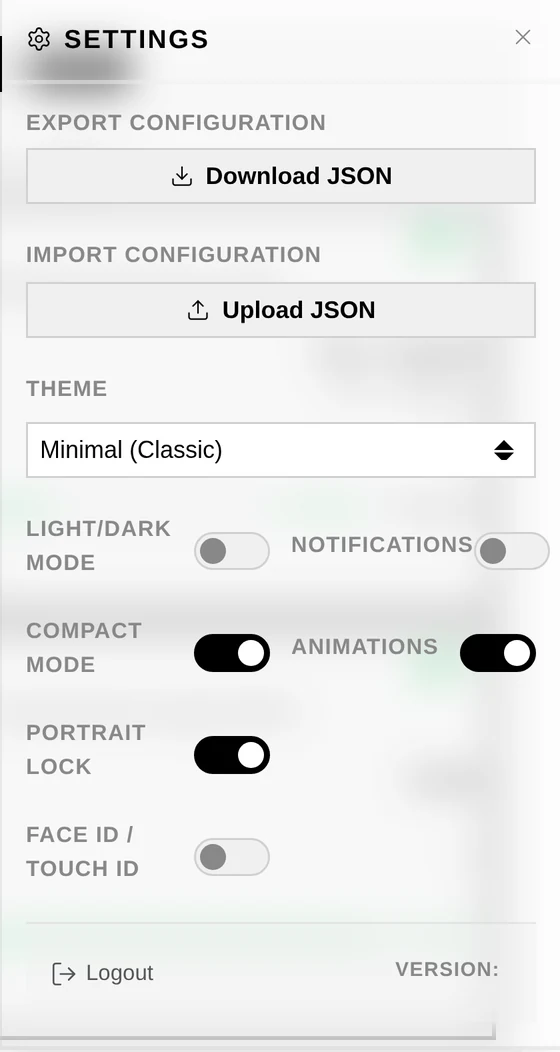
The gear in the top bar opens the app-wide Settings panel:
- Theme — three looks: Minimal (Classic), Slate (Modern) and Gravity (Bold & Cosmic). The look is chosen here.
- Appearance — Automatic, the default, follows your device: light by day, dark at night on a device that switches by itself. Light and Dark keep one, whatever the device does. The sign-in screen has a light/dark button too, so the choice can be made before signing in (see 3. First run).
- Notifications — subscribe this device to push notifications (see below).
- Animations — turns UI motion off (functional loading spinners keep animating so an operation never looks stuck).
- Top Bar Metrics — shows or hides the figures of the top bar — uptime, CPU, temperature and memory; a phone shows the last three — on this device only. The System tab keeps showing them.
- Portrait Lock — phones and tablets only; see 4. Listening.
- Face ID / Touch ID — register this device as a passkey in one tap; each registered device appears as a chip you can remove individually. (These are the same credentials as the Passkeys button on your user card above.)
Push notifications
With Notifications on, the box sends this device a system notification when something needs attention — even with the app closed:
- a monitored service goes down;
- the CPU reaches a critical temperature;
- a software package update is available;
- a profile is activated.
Like passkeys, push needs Audiogravity reachable over a real HTTPS domain — it does not work over a bare IP (see 2. Installation).
Services
Monitor and control individual systemd services in real time.
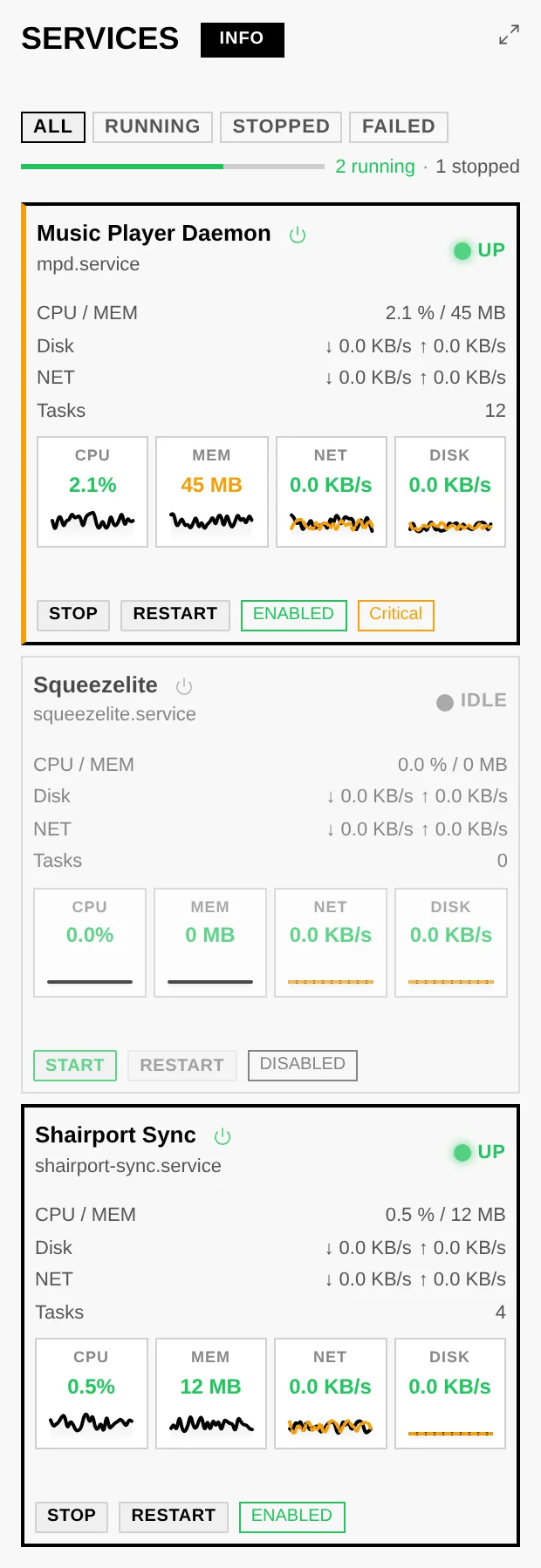
- Status — active (green), inactive (grey) or failed (red); the dot blinks orange while a start/stop is pending. A segmented health bar shows the running / stopped / failed proportions at a glance.
- Control — start, stop or restart any service from its tile. The ENABLED / DISABLED badge controls whether it starts at boot. Uptime is shown next to the unit name.
- Detail — click a service name for live metrics (CPU, memory, tasks, network,
disk) and the last actions made on it from this browser. Metrics are colour-coded
LOW / MEDIUM / HIGH, tuned per audio service (e.g. CPU: ≤5 % low, 5–20 % medium,
20 % high).
- Graphs — each figure on a tile has a small graph of its recent values; click the graph to unfold a larger chart on the tile, and × to fold it away. Network and disk draw two lines: received and sent, read and written.
- Filter — ALL / RUNNING / STOPPED / FAILED.
A dash means "not measured", not "zero". Three of the figures depend on counters that can be switched off, and Audiogravity shows a dash rather than inventing a value:
- Disk and Network are counted per service, and only when IO Accounting and IP Accounting are enabled on that service — two switches in the Systemd tab's override editor. They take effect at once, without a reboot.
- Memory depends on the machine: a Raspberry Pi kernel starts with its memory counter switched off, and no setting in the app can change that. See 9. Troubleshooting → Memory shows a dash for every service.
CPU and tasks are always measured.
Config editor
Safely edit the real configuration files of your audio services (see also 3. First run for the guided setup).
- Guided mode (admins; MPD, AirPlay, UPnP, HQPlayer Embedded) — choose the output, and for MPD the music library, in a couple of clicks; only the changed setting is rewritten. UPnP has nothing to choose there, because it plays through MPD. Reset to default regenerates a minimal config (current file backed up first) — except for HQPlayer Embedded, whose settings are its own: only its output is chosen here.
- Form mode (called Structured next to Guided) — edit common settings through a friendly interface, with a description for each field. HQPlayer Embedded has none: its file is edited in Expert mode.
- Expert (Raw) mode — edit the raw file directly. A basic check before saving catches a broken structure (an unclosed section or tag), not a wrong value.
- Preview changes (Diff) — a unified diff (raw) or a before/after field table (form) of your unsaved edits.
- Automatic backups — every save, and every restore, first backs up the current file; the Backups button lists the last 10 and restores any of them.
- Restart after save — on by default (applies changes immediately); uncheck to batch several edits.
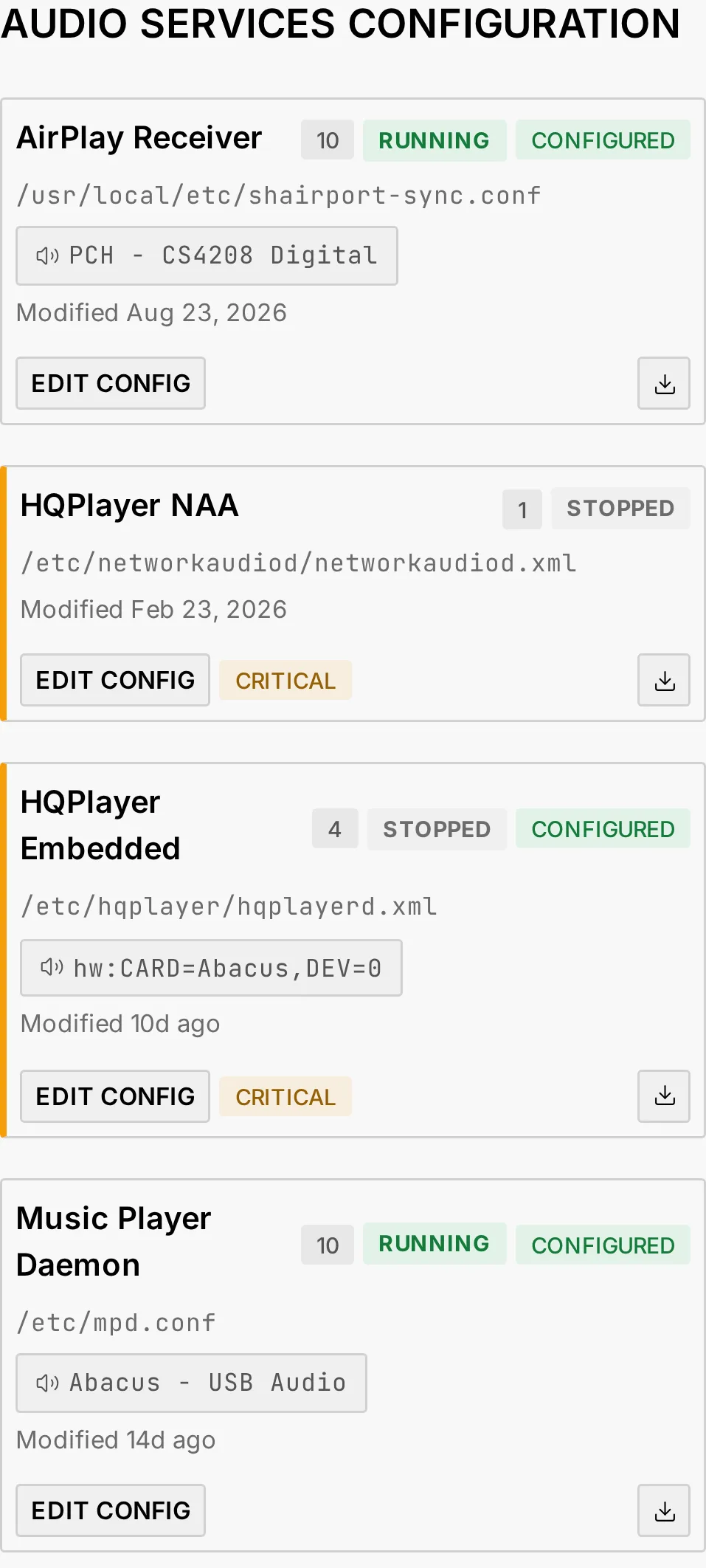
Each tile carries the state of its service — RUNNING, STOPPED or FAILED — and, for admins, whether a service Audiogravity can set up itself is CONFIGURED or still on its package defaults. HQPlayer Embedded is CONFIGURED once its output has been chosen here.
When the software behind a tile is not installed
A tile whose package is absent is dashed and greyed, carries an UNAVAILABLE badge and says so in plain words, with a link to Audio Software where the package is installed.
A package removed without purging leaves its configuration file behind, and that file stays downloadable. Editing is closed, because saving a configuration also restarts the service and no restart can succeed for software that is not there. Your backups are not lost; they come back with the package.
An installed service whose file is missing keeps its editor, which is what creates the file.
Audio configuration (services & profiles)
The Services tab and the Profiles tab both come from one file,
/etc/audiogravity/audio-config.json: the audio services Audiogravity drives, and
the profiles built on them — each a one-tap way to start one set of services and stop
another. It is a different file from the per-service config files edited above: this one lists
which services exist, not their settings.
Audiogravity ships this file, and puts it in place at every installation and every update: the services and profiles on your box are those of the version you run.
- A profile's name says what it starts — MPD + HQPlayer NAA runs MPD and HQPlayer's NAA — and its description what it is for. Two exceptions: UPnP Renderer runs MPD and the UPnP bridge, and Stop All stops everything.
- A profile that starts HQPlayer's NAA or HQPlayer Embedded is critical: its tile has an orange left edge, and the confirmation of a switch is titled Critical Profile.
- The services and profiles of software you have not installed stay listed, greyed out, until you install it from Audio Software.
A change made to the file by hand lasts until the installer runs again — at the next update,
or a reinstall — which puts the shipped file back and keeps the one it replaces beside it as
audio-config.json.previous. To make one, see
9. Troubleshooting → Changing the profiles between two versions.
See also Audio topology below — the file you own, describing the physical hi-fi chain that feeds the signal-path view.
Audio topology (signal-chain map)
The Audio Pipeline graph (see 6. Outputs & engines) is drawn
from a single file you own: audio-topology.json. It is a plain description of your
hi-fi chain — which devices you have (streamer, DAC, amplifier, speakers, the app driving
it…) and how they are wired together. Audiogravity reads it to draw the picture
and never changes the chain you describe. The one thing it writes there is the output you
choose for each service, in the guided setup or in Guided mode.
- What it declares vs. what is detected. The topology describes the chain — the boxes downstream of your streamer and how they connect. The streamer's own physical outputs (USB, optical, HDMI…) are resolved live from the real hardware at playback time, not from the file; the file just tells Audiogravity which cable feeds which device so the graph and the output labels line up.
- Editing it. Open the Audio Pipeline view and click CONFIG (Pro, admin/user — guests get a read-only view). The editor opens in View mode; hit Edit to unlock the JSON, then Save.
- Download / Upload. From the same editor, Download saves the current
audio-topology.jsonto your computer — handy for editing it offline or keeping a copy; Upload loads a file back into the editor for review, and the usual save-time validation runs when you click Save (nothing is written until you do). - Validation on save. Before the file is written, Audiogravity checks it: a malformed file, an unknown device type or a value of the wrong kind — a number where a name is expected, say — is an error and blocks the save; a broken link (an output pointing at a device that doesn't exist) or a connector that maps to no real output is a warning you can review and accept. Once saved, the graph reloads immediately.
Structure
Everything lives under hifi_topology.devices — a map keyed by a device id you choose:
{
  "hifi_topology": {
    "devices": {
      "streamer_01": {
        "type": "streamer",
        "label": "Audiogravity",
        "outputs": {
          "usb_out": { "connector": "usb-a", "target_device_id": "dac_01" }
        }
      },
      "dac_01": {
        "type": "converter",
        "label": "My DAC",
        "inputs":  { "usb_in": { "connector": "usb-b" } },
        "outputs": { "line_out": { "connector": "rca", "target_device_id": "amp_01" } }
      }
    }
  }
}
type— one ofstreamer,converter(DAC),amplifier,output(speakers),source,server,storage,controller.outputs/network_outputs— each wired output points at atarget_device_id(and optionally atarget_input_idon that device); that's what links the chain together.connector— on the streamer, the output connector (usb-a,toslink,hdmi,rca/jack…) is what maps the declared output onto a detected hardware output. A connector that matches no real output is what the save-time check warns about.
A fully-commented reference file, audio-topology.json.example, ships with the box and
validates cleanly — start from it when in doubt (Download the current file, edit against the
example, then Upload it back).
Keeping it up to date
Edit the map whenever your physical setup changes — a new DAC, a different amplifier, a cable
moved from optical to USB. Keep the target_device_id values consistent (an output should
point at a device id that exists), and the save-time validation will flag typos before they
reach the graph. Before a big change, Download the file: if the new version does not suit
you, Upload it back and save.
Audio Software
Install, update and uninstall the services Audiogravity uses (MPD, upmpdcli, shairport-sync, Roon Bridge…).
- Filter — ALL / INSTALLED / UPDATES narrows the list of cards.
- States — NOT INSTALLED, INSTALLED, INSTALLING / UPDATING / UNINSTALLING (with a progress bar), ERROR.
- Actions — INSTALL; UPDATE, shown when another version is offered — for HQPlayer NAA it can be an older one, see below — and always for Roon; UNINSTALL. After a failed operation the card offers the way out that fits it: an install that failed left nothing behind, so it offers to try again; an update that failed left the previous version in place, so it offers to update or to remove.
- Before installing — when the software comes with a licence, as HQPlayer's do, it is shown first, and nothing installs until you accept it. When it is published in several versions side by side, you choose one; a version your box cannot run is listed with the reason.
- Uninstalling keeps your settings — reinstall, and they are back. To erase them as well, tick Also delete its settings and data; this cannot be undone. Roon's packages are the exception: uninstalling them removes their settings too.
- Install Incomplete (or Update Incomplete) — the software is installed, but a step after that could not be done: the message says what is left to do. It also names any other software the system removed on the way.
- Version check — your box checks by itself, once a day, and tells you when something new is published; you do not have to come and ask. CHECK UPDATES in the header asks immediately, and first refreshes what your system knows its software sources publish — which is what makes the answer current rather than as old as the last boot. When updates are pending, an UPDATE ALL badge appears next to it to run them in one go.
- Roon is the exception — Roon publishes no version number, so your box cannot tell you a Roon update is waiting, and never will. Use the button anyway when you want to move: it re-runs Roon's own installer, which always fetches the current build. The card tells you which build you have and that there is nothing to compare it against.
- HQPlayer NAA follows your HQPlayer — the adapter has to be on the same major line as the HQPlayer it feeds, so the version offered here is the one that matches the instance you are connected to, not simply the newest the vendor publishes. With no HQPlayer answering, the line already installed is kept.
- HQPlayer Embedded — installing it also gives you a password for its web page: see 6. Outputs & engines → HQPlayer Embedded.
- Not available here — a greyed-out INSTALL always says why, and the three reasons are not the same: the publisher has no build for your machine's architecture (nothing to be done); their site could not be reached when the list was worked out (worth trying again — REFRESH in the page header rebuilds it); or another installed package rules it out. Roon is the case you are most likely to meet: Roon Server already contains Roon Bridge, so the two cannot share a box, and the card names the one that is in the way.
- Installed, but not configured — installing a service does not configure it; that is a separate step. The card says so while a service still runs on the settings its own package shipped, because it can then play to the wrong output while looking perfectly ready.
- Playback is interrupted — updating a service restarts it, uninstalling stops it. The confirmation names the service that is about to be cut, so an update chosen in the middle of an album is a decision rather than a surprise.
- Restart required — a pulsing badge appears when a service needs a restart after install/update; click to restart it. HQPlayer Embedded is restarted for you once installed, so it only shows the badge when that restart failed.
- Documentation — the book icon at the foot of a card opens the publisher's documentation in a new tab.
- Architecture — the CPU badge lists the processor types the package is published for.
- SIMULATE (admins) — goes through an operation without changing anything. It only walks the steps: a simulation that succeeds does not prove the real one will.
System
Real-time monitoring and box-level actions.
- Metrics — CPU, temperature, memory, disk and network, updated live; the Live updates tile shows whether the live feed is connected.
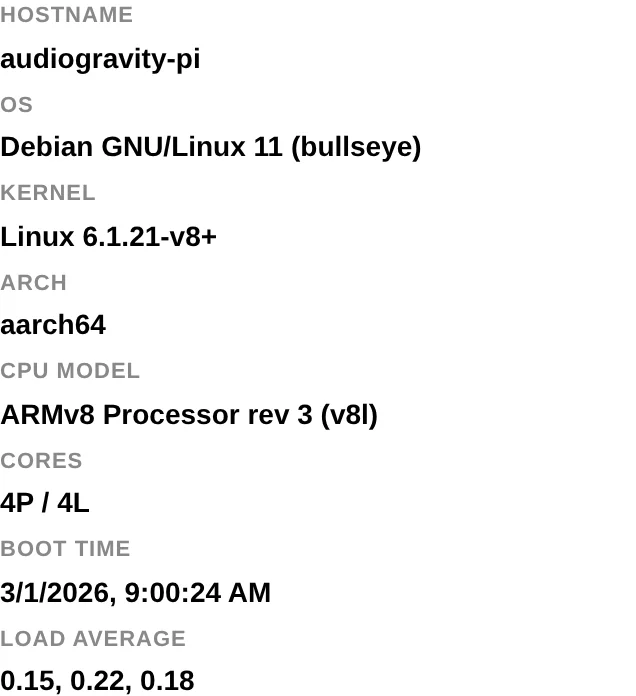
- System & audio hardware — hostname, OS, kernel, CPU model/cores; every audio card, USB interface and subdevice.
- Event log — system events and live updates; RUNNING/STOPPED to pause, CLEAR to reset.
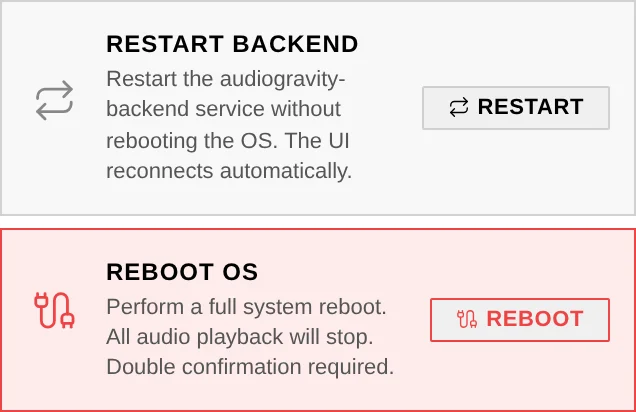
- Actions (admin) — Restart Core restarts the Audiogravity service without rebooting; Reboot OS performs a full reboot (double confirmation). The UI reconnects automatically. While software is being installed, both are refused with a message naming what is being installed: try again once it has finished. Support Report is described below.
- Terminal (admin) — a full interactive shell on the box, in the browser. It can
change anything on the machine: use it with care. Closing it — or the end of your
session — stops everything running in it, even a command started with
nohup: run a long task over SSH instead.
Support report
Support Report in System › Actions collects, in one gesture, everything someone
helping you would otherwise have to ask for: the version and architecture, the licence
verdict, system vitals, which audio packages are installed and at which versions, the
state of each service and whether it starts at boot, the detected outputs — each with
its full label and its hw: address, so two sockets on the same card can be told apart
— and, for every service, both the output Audiogravity pinned it to and the one its
own configuration actually names, flagged when the two disagree. That last line is the
one most worth having: a box playing out of a socket nobody chose looks exactly like a
box playing correctly, until something says so. It also carries whether each
configuration file is Audiogravity-managed or hand-written, whether each streaming
account is signed in, the declared music library and whether MPD has actually indexed
it — and the configuration files themselves.
It also carries what a certificate incident turns on: the day the served certificate was issued and not only the day it expires, when the box's own authority was created and its fingerprint — an upgrade never replaces that authority, so those two tell "the authority changed and every device stopped at once" apart from "this one device was never set up" — whether each interface's address is leased or fixed, which is whether it can still move, the name the box announces, asked of the announcing service itself rather than guessed from the hostname, and the date of the last self-update. When the announced name is not one the certificate carries, the report says so on the spot rather than leaving you to compare two sections by eye.
It also gives the address to type to reach the interface: the box's address on your
network, and its .local name beside it, each with the port to use.
Passwords, API keys and access tokens are removed before the report is built. A credential's name stays visible so you can still see the setting exists, but its value never appears. Neither does the content of your library.
Nothing is sent anywhere. The report is displayed for you to read; Copy puts it on your clipboard and Download saves it as a text file, so it travels only if you attach it to a message yourself.
Performance tuning (Pro)
Keep the processor at the right speed for glitch-free playback, and measure how well the box — and your network — keep up.
Each core has its card: its frequency, its temperature — green, amber above 50 °C, red above 70 °C — and its load, one bar per measurement on the same 0–100 % scale for every core, so the cores compare at a glance. The time the bars cover is written next to Load.
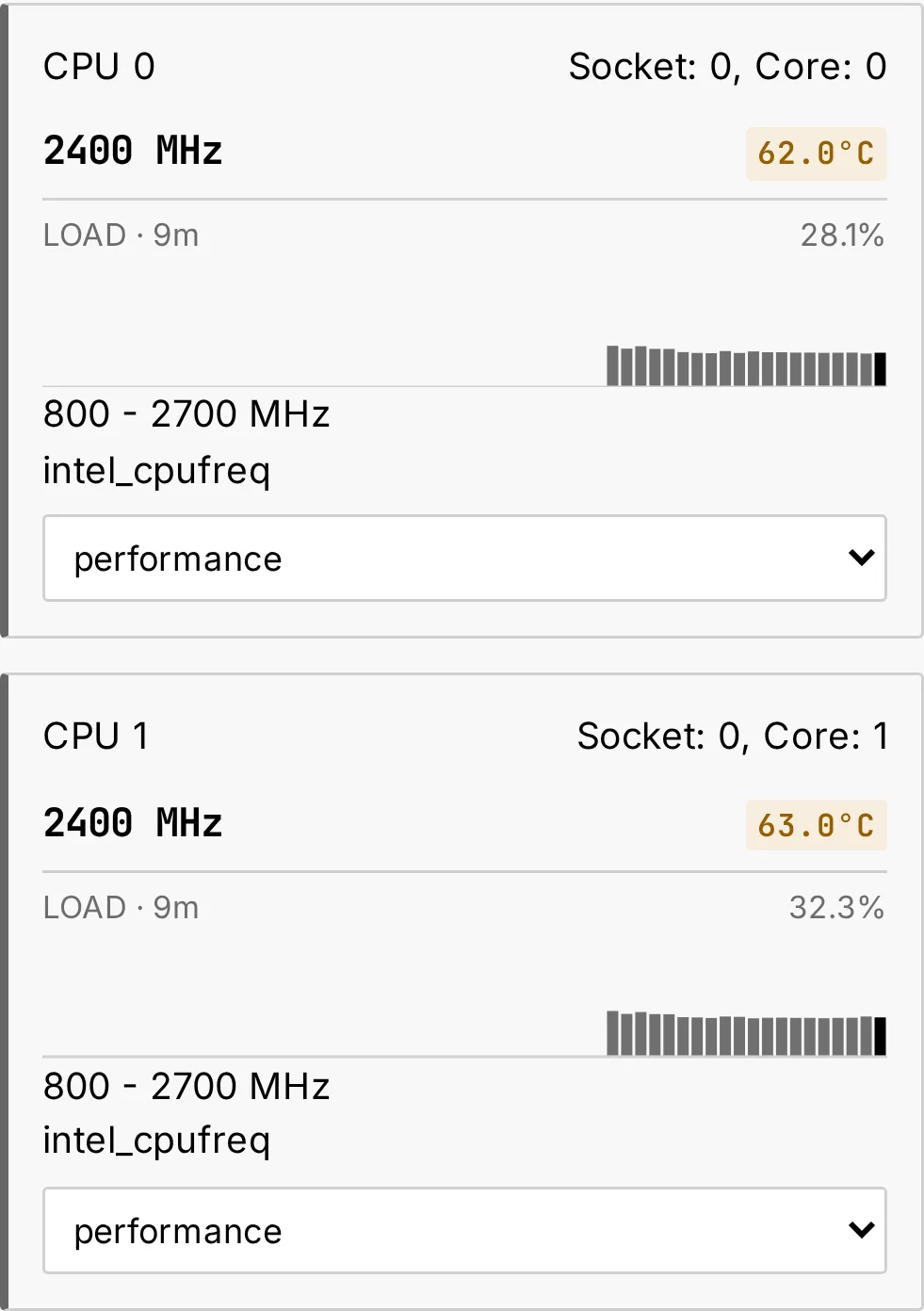
- CPU governor — how the processor adjusts its speed. The choices are those your processor offers, typically performance (full speed at all times, the steadiest for audio), schedutil (follows the load) and powersave (not recommended for audio). Set it per core with the menu at the bottom of its card, or with Apply All, under the cards, for every core — its confirmation names the governor it will set. Save Conf keeps the current choice, and Create Service puts the saved choice back at every start-up: save first, or there is nothing to put back.
- THROTTLED badge — appears on a core the processor had to slow down since the previous measurement: because it ran too hot, on processors that report it (Intel's), or, on a Raspberry Pi, because its power supply could not keep up — the whole processor slows then, and every core shows the badge. Sustained throttling during playback causes glitches.
- RT process monitor — shows whether the audio programs run in real time: MPD, AirPlay, and Roon Bridge with its RAAT server. A green badge (SCHED_FIFO / SCHED_RR) means real time; a red NON-RT badge means the program can be held up while the box is busy — give it a real-time policy in Systemd tuning.
Latency test
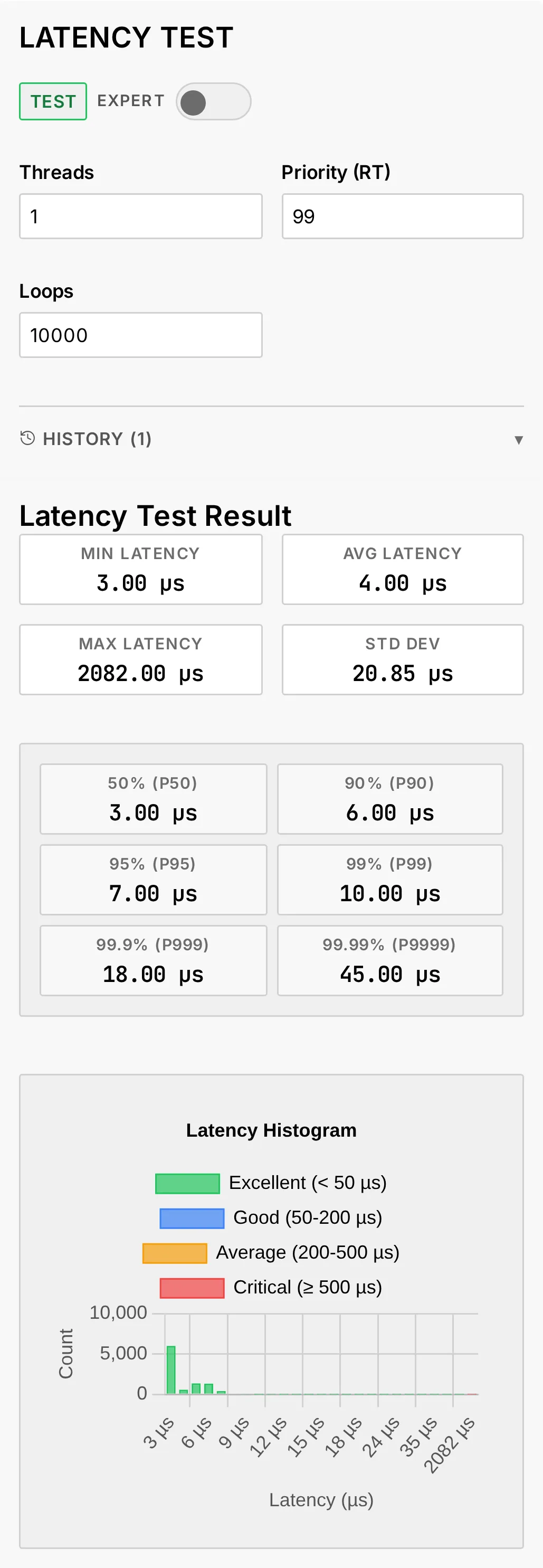
Measures how quickly the box answers a timer: the worst delay it finds is what an audio program risks when the box is busy. Set the test, click TEST, and read the result.
- Threads (1–16) — how many measurements run side by side: 1 for a quick look, one per processor core to load the whole box.
- Priority (RT) (1–99) — the real-time priority the test runs at; 99 by default.
- Loops (at least 1 000) — how many measurements each thread takes. The test lasts loops × interval: the default 10 000 loops take one second, 1 000 000 under two minutes — a longer run catches rarer delays.
- EXPERT shows the finer settings: the Interval between measurements (100 µs by
default), the range of the histogram, the CPU Affinity — the cores the test runs
on, such as
2,3; left empty, any of them — and two switches best left on, Memory Lock and Quiet Mode.
In the result, Max is the figure that matters: the worst delay seen, in microseconds. The histogram shows how often each delay occurred.
Network test
Checks that your network carries audio without hiccups — worth running when streaming, Roon, AirPlay or a NAS stalls. Choose a mode, set it, and click TEST.
- PING (Quick Check) — sends 20 small packets to a host (1.1.1.1 by default; your router's address tests your home network alone) and reports the delay, how much it varies (jitter) and any packet lost.
- IPERF3 UDP (Audio Streaming) and IPERF3 TCP (Throughput) — a test server
sends a steady stream to the box for the chosen Duration, at the chosen
Bandwidth. The server runs on another machine of your network: install iperf3
there, start it with
iperf3 -s, and enter its address in Server. Set Bandwidth to what your music needs — DSD512 and PCM 768 kHz take close to 50 Mbit/s (50M). UDP reports jitter and loss at that rate; TCP reports whether the rate holds, and how many packets had to be sent again. - Internal Server Service — START SERVICE runs a test server on the box itself, so that another machine can test its way to the box.
The verdict — EXCELLENT, GOOD, FAIR or CRITICAL — sums up the jitter, the loss and, for iperf3, the bandwidth reached.
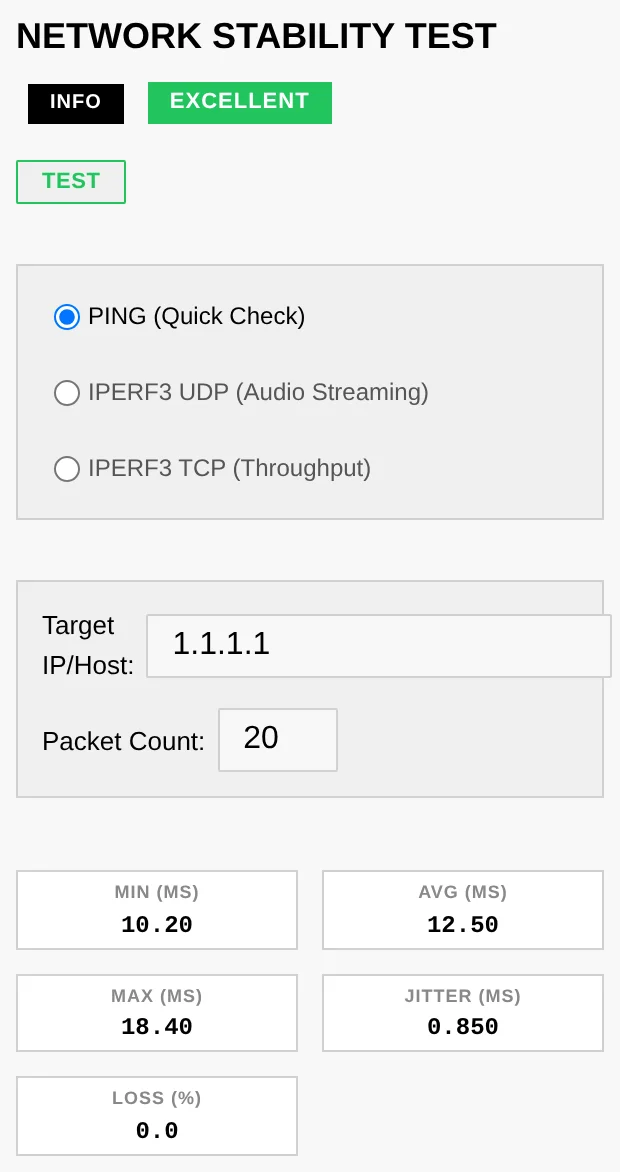
Each test keeps a History of the last ten tests run from this browser, latency and network together; Clear empties both.
Systemd tuning (Pro)
Low-level, per-service OS tuning using systemd drop-in overrides — the native
.service files are never modified; everything lives in an isolated
.d/override.conf.
- CPU affinity — pin a service to specific cores to cut context-switching jitter.
- RT scheduling — FIFO/RR policy and priority (1–99) for guaranteed CPU time.
- CPU weight / I/O priority / OOM score — bias the scheduler, disk access and the out-of-memory killer in favour of audio.
- RT preset — Audio Optimized pre-fills a battle-tested config (SCHED_FIFO 80, LimitRTPRIO 99, MEMLOCK infinity, I/O realtime, OOMScoreAdjust −500, CPUWeight 1000).
- Safety — a diff preview before applying; Restore Backup puts the previous settings back, and Remove Override returns the service to its original settings. A running service is restarted on them at once; if it does not start with them, it gets back the settings it was running on, and you are told. A stopped service stays stopped.
- Settings a service cannot start with are refused before anything is saved, with the reason: a real-time priority without a real-time policy or the reverse, a CPU the box does not have, a memory limit under 16 MB, an open-file limit under 1024.
- A change that stops a service is undone. A running service is restarted on its new settings and watched for a few seconds; if it does not stay up, the previous settings are put back, the service is started again, and you are told. A service that is not running is not started by a save: its new settings apply at its next start.
Announcements
From time to time Audiogravity broadcasts a short announcement — release news, an important notice. Unread announcements appear as dismissible banners at the top of the Admin page, and the Admin tab carries a small marker until you have seen them (the same cue it uses for a waiting update). Dismissals are remembered per device.
Licence
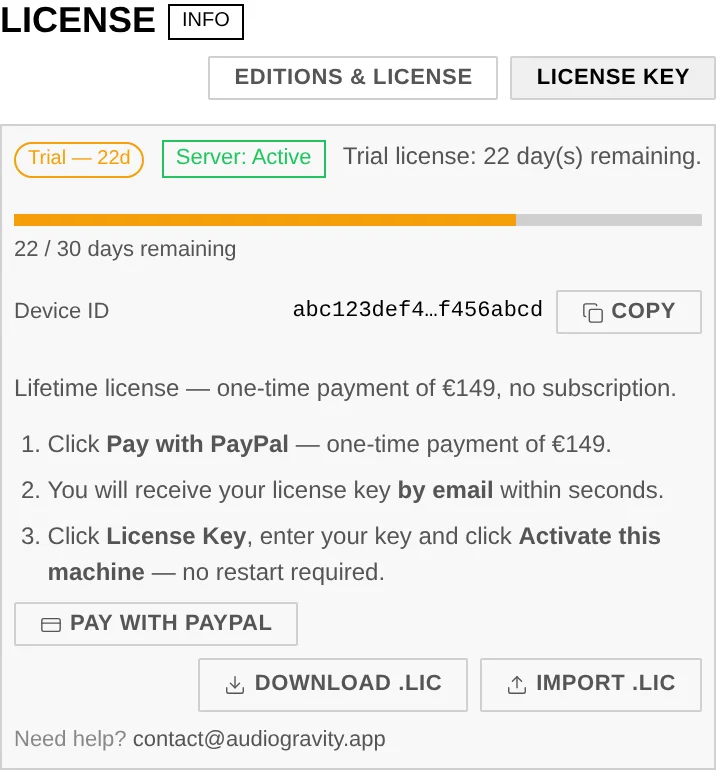
The licence panel opens from the Admin tab. On a Starter install, tapping a Pro tab — those carry a small lock icon in the tab bar — brings you here too, with the License activation window open over the panel.
- Trial — 30 days of full access, auto-activated on first run.
- Buying — the licence panel lists the steps: Pay with PayPal, receive your licence key by email, then activate it (see Activating a licence key). No restart is needed.
- Lifetime — a
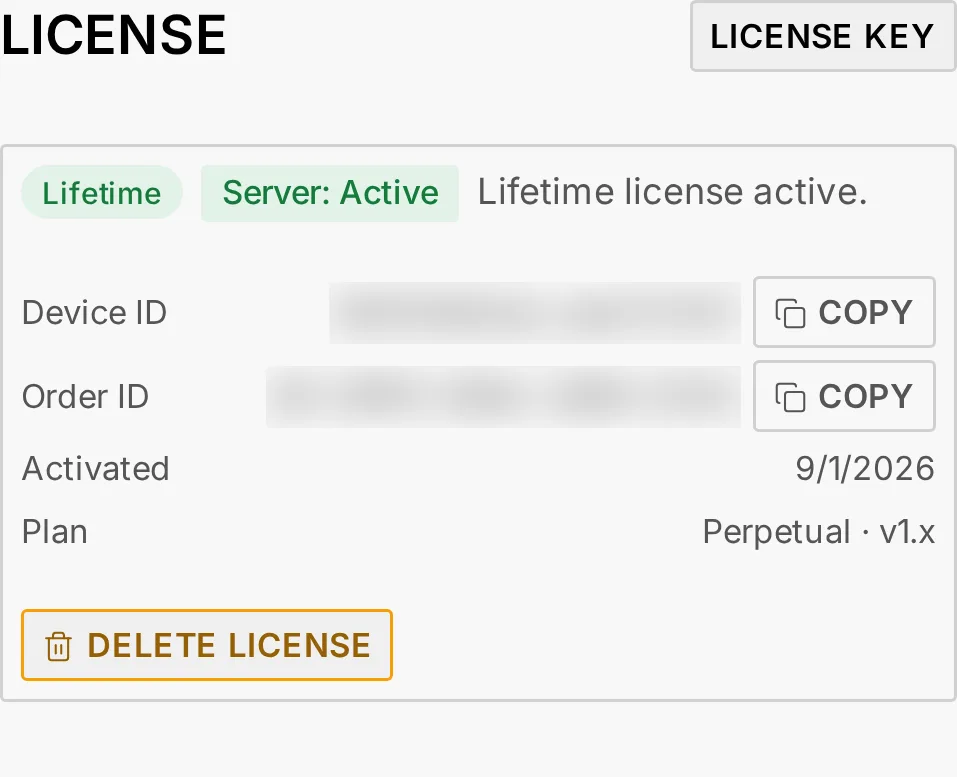
.licfile for this one installation, identified by its Device ID. One-time payment, no subscription, no end date; it covers every 1.x version, and the 0.9 beta before it (see 11. FAQ → Are updates included?). - Time-limited — the same file, issued to run until a given date. The panel shows that date while the licence is valid, and the plan reads Time-limited rather than Perpetual. Every Pro feature is unlocked exactly as with a lifetime licence.
- Import / re-download — import a
.licfile, or re-download yours from the self-service portal (purchase email + Device ID, no account needed) if it has gone missing from this installation. - Reinstalled the system, moved to another machine, or replaced its network card? The box then has a new Device ID, and your licence no longer matches it — neither the portal nor your old file can fix that. Write to [email protected] with your Order ID and the new Device ID: a licence reset is available on request (see 9. Troubleshooting).
Once the licence is activated the same panel changes shape: the countdown gives way to the plan, the order the key came from, and the date it was activated.
Activating a licence key
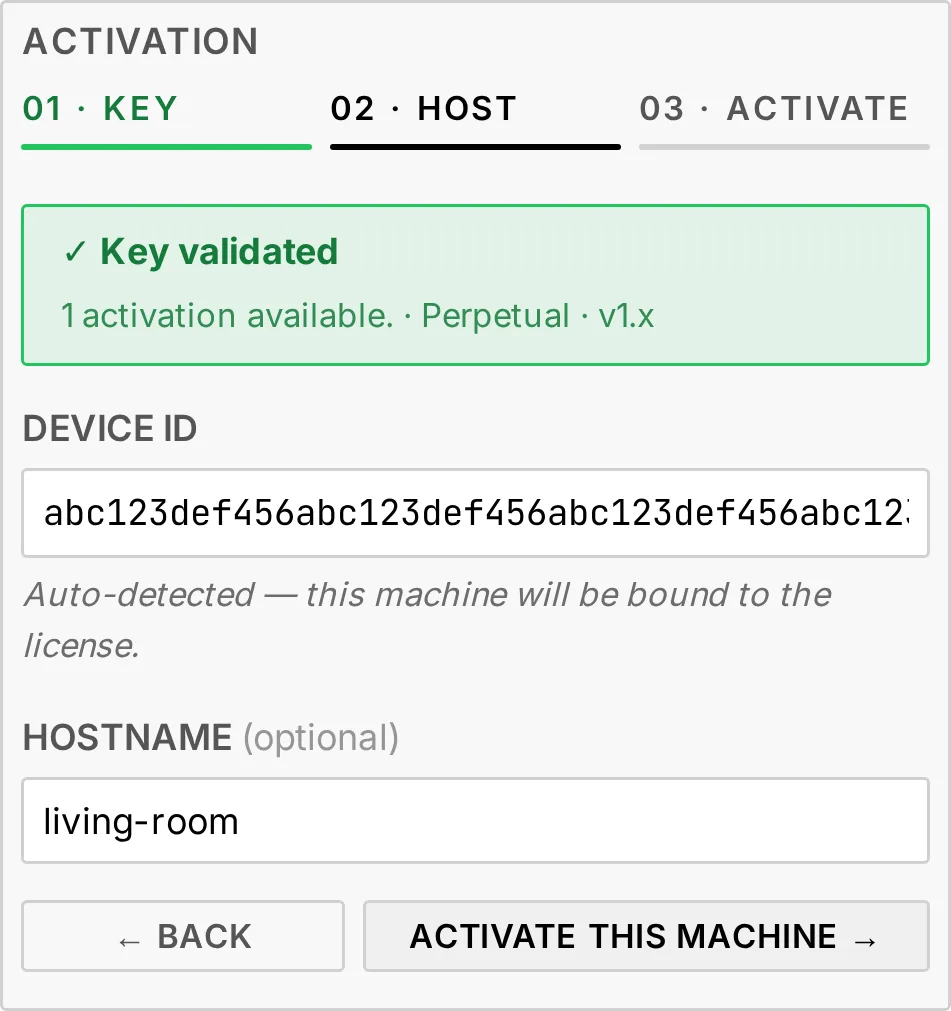
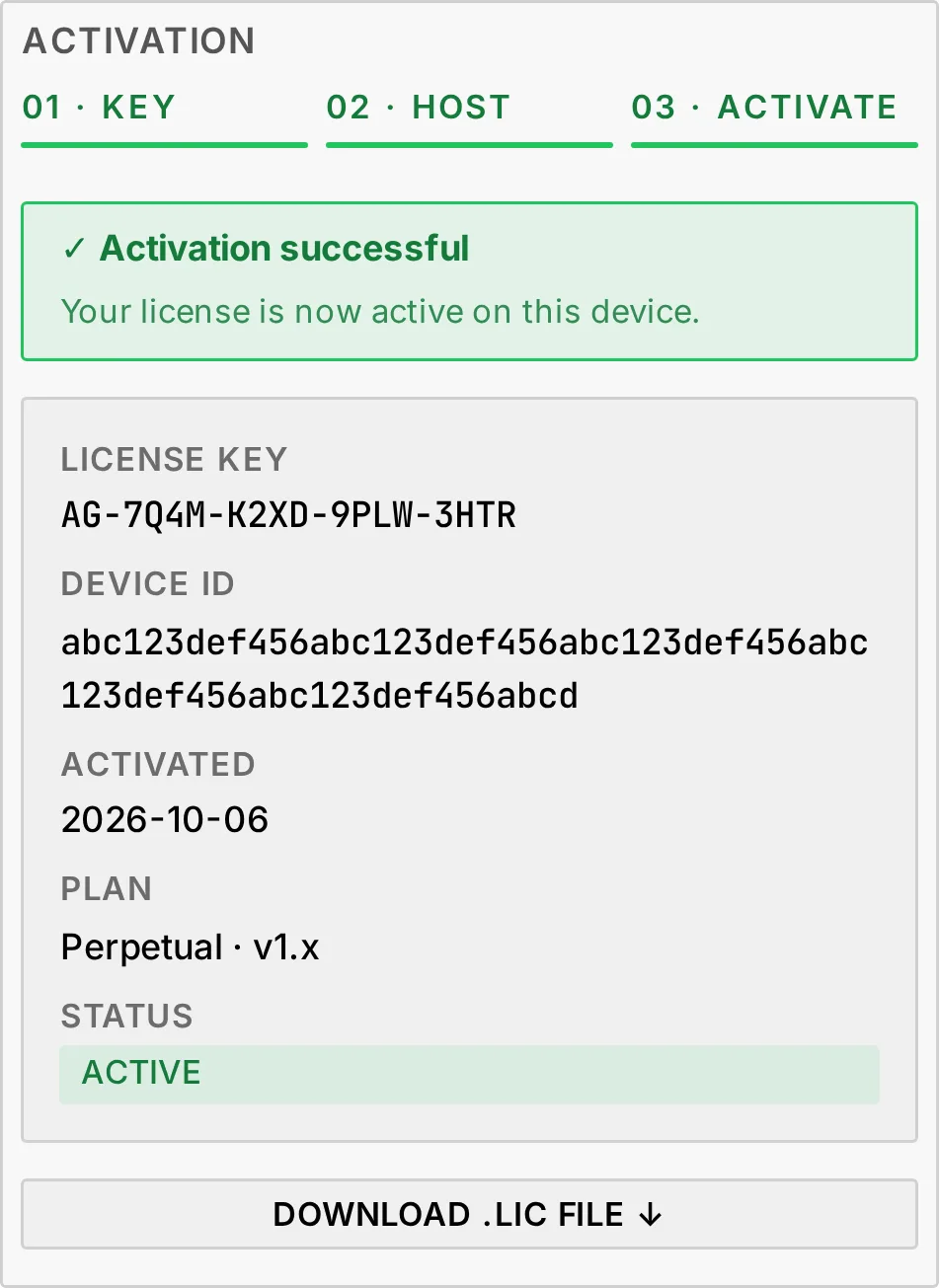
LICENSE KEY, at the top of the licence panel, opens the License activation window. Its three steps are marked across the top: the one you are on stands out, those done turn green.
- Key — paste the key from your purchase email,
AG-XXXX-XXXX-XXXX-XXXX. ✓ Valid format only means it has the right shape: tap CHECK KEY → to have it checked. - Host — Key validated gives the plan, and says whether this is the key's first activation or a new activation on this same box. The Device ID is filled in: it is this box, the one the licence will be tied to. The Hostname is filled in with the box's name on your network; change it if you like, or leave it empty — it helps tell your boxes apart. Tap ACTIVATE THIS MACHINE →, or ← BACK to change the key.
- Activate — Activation successful, with the key, the Device ID, the date and the plan, and all three steps in green. Every Pro feature is open at once. DOWNLOAD .LIC FILE ↓ saves a copy of the licence file.
When a key is refused, the window says why. At CHECK KEY:
- No license found for this key on this device. — check the key against your purchase email. If it is right, it is tied to another box: after a reinstall or on a new machine, see 9. Troubleshooting.
- This license has been revoked. or This license expired on … — the key can no longer be activated.
- Could not reach the license server. Please try again. — try again in a moment.
At ACTIVATE THIS MACHINE:
- This license is already activated on another machine. — the same as a key tied to another box, above.
- License server temporarily unavailable. Please retry. — try again in a moment. The key stays filled in, even after you reload the page.
Checking a licence key
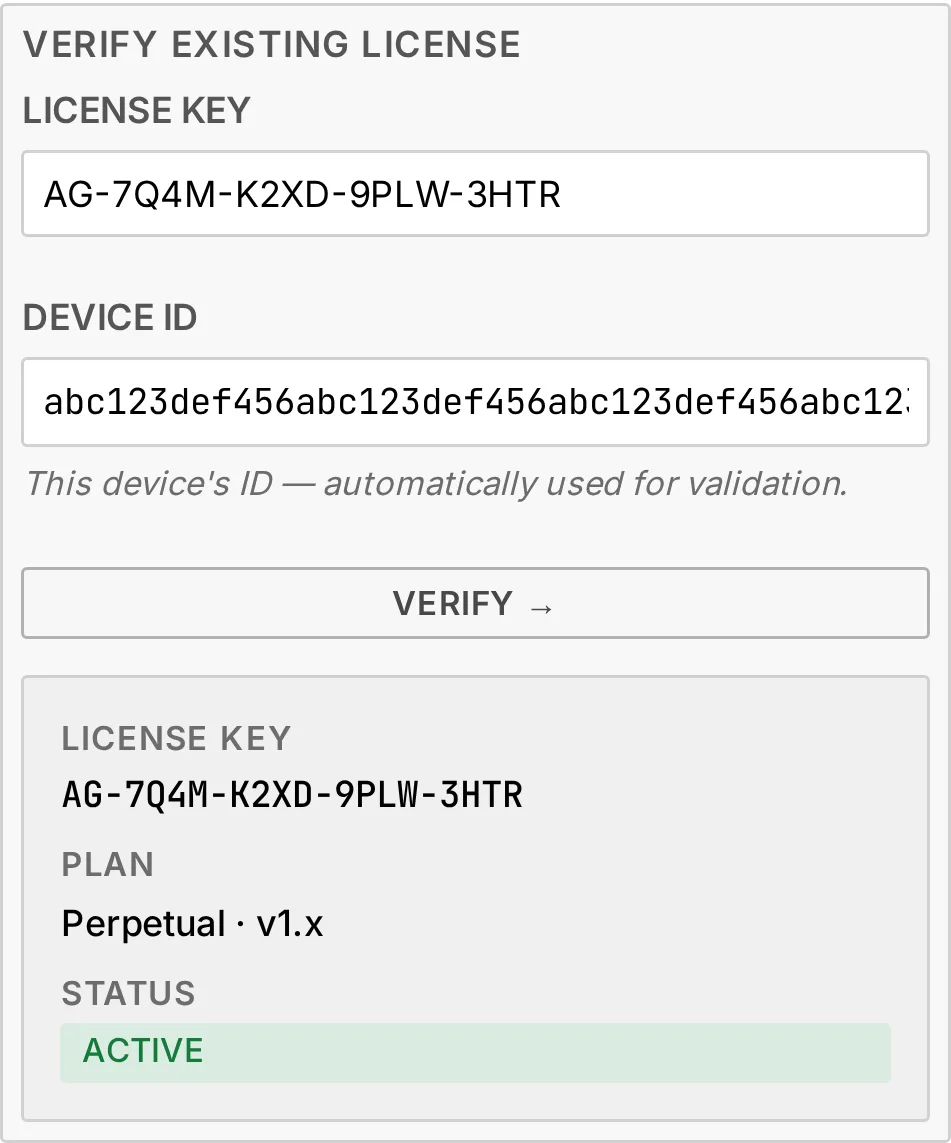
Under the activation steps, Verify existing license looks a key up without activating anything. Paste the key and tap VERIFY →: this box's Device ID, filled in, is checked with it. The answer gives the plan, the end date of a time-limited licence, and the key's status:
- NOT ACTIVATED — the key is valid and not yet used: activate it with the steps above.
- ACTIVE — the key is already activated on this box.
- REVOKED or EXPIRED — the key can no longer be used.
- No license found for this key on this device. — the key does not exist, or it is tied to another box.
What the box sends to the licence server
Whether Pro is unlocked is decided on the box, from the signature of its .lic file —
no network round-trip gates it. Alongside that, the box checks in with the licence
server once a day; that channel is how revocations,
announcements and update offers reach you.
The check-in carries what the licence needs and nothing more: the Device ID, the
primary MAC address, the operating system and architecture, the
Audiogravity version, the current licence status and — during the trial —
its start date. The .lic file itself travels when it is verified, and the hostname
you type when activating a key. The server records the network address the request
arrives from. Your music, your library paths, your service credentials and what you
listen to never leave the box.
A Pro licence is tied to one machine, so this exchange is part of how the licence works and is not optional.
Related
- 8. Updating — keeping the box current
- 9. Troubleshooting — when something misbehaves